Bring Your Own Models / Keys
Akuity Intelligence introduces the Bring Your Own Key (BYOK) capability, enabling customers to integrate their own API keys or preferred model providers. Any provider offering an OpenAI-compatible or Anthropic-compatible API is supported, including public cloud model services as well as self-hosted open-source models.
Benefits of BYOK
-
Flexible cost management: Customers can use their own API keys to control AI usage and associated costs, without relying on Akuity-based billing.
-
Enhanced data privacy and compliance: Organizations with strict privacy or regulatory requirements can route all AI traffic to private or on-premises deployments.
-
Freedom to use the latest models: Customers can access any newly released or alternative models—beyond Akuity’s default catalog—simply by adding their provider keys.
If you use a custom model instead of an Akuity fine-tuned models, the model's performance and capabilities may not be optimal.
Supported Model Providers
Akuity Intelligence currently supports the following providers:
- OpenAI
- Anthropic
- OpenRouter
- Bedrock
- Gemini - Google AI Studio
- Any self-hosted model exposing an OpenAI-compatible or Anthropic-compatible API
Setup
Getting Started with BYOK
To start using the BYOK (Bring Your Own Key) feature:
- Navigate to Intelligence, click Settings in the top right corner, from the left-hand menu, select the Models tab, click Add.
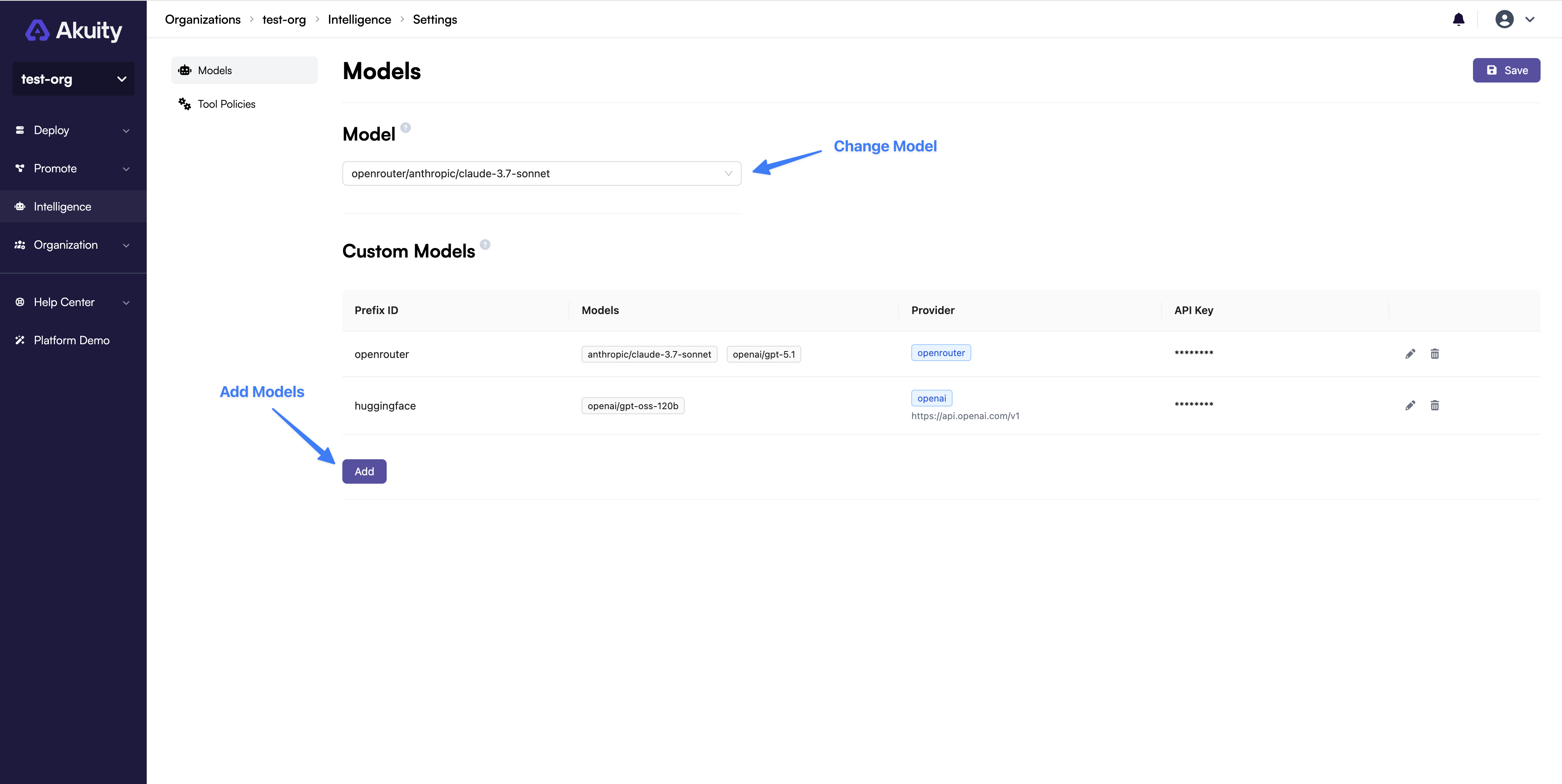
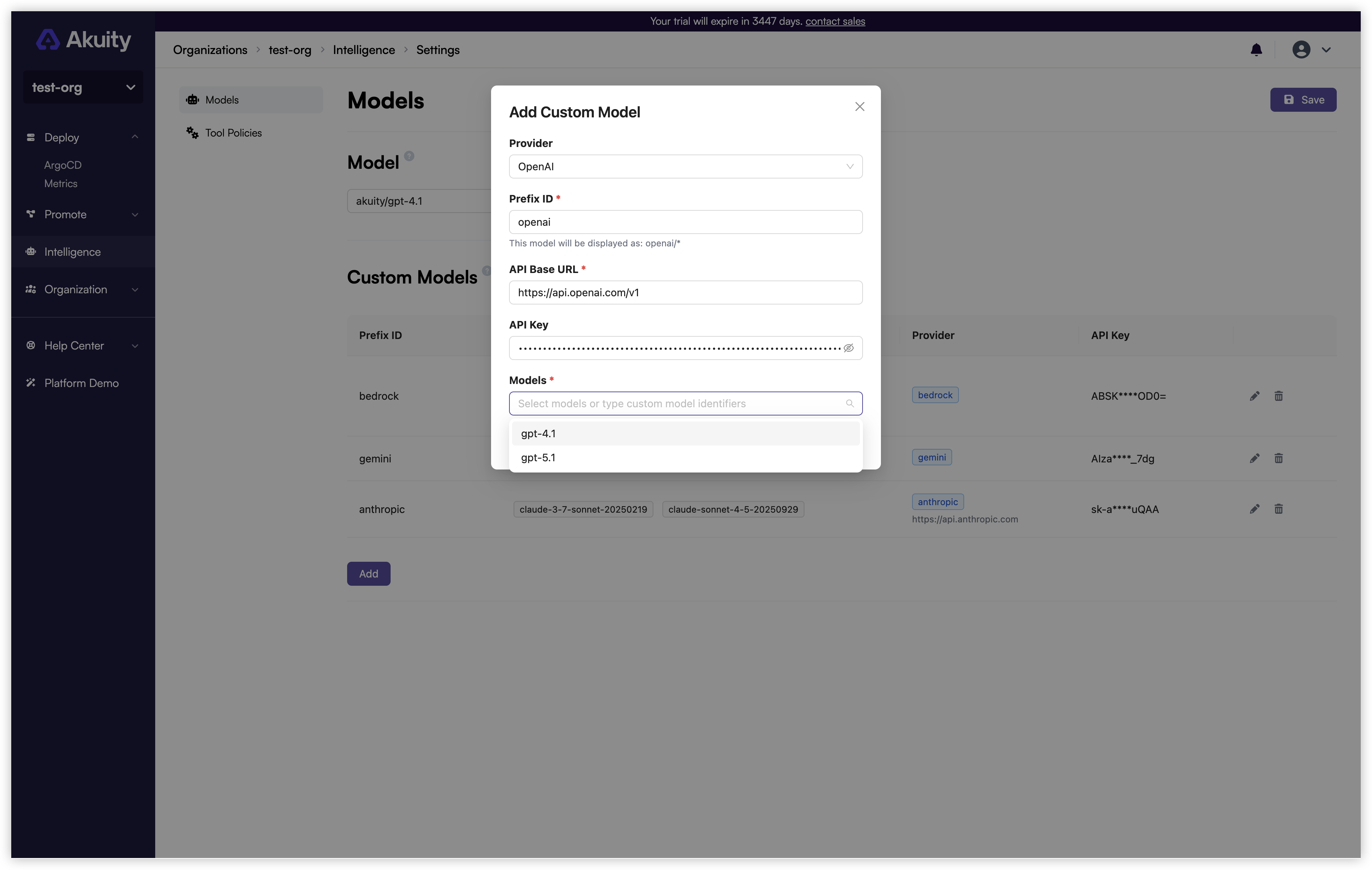
- Select Provider, currently we support OpenAI, Anthropic and OpenRouter. If you are using self-hosted model with OpenAI/Anthropic compatible API, choose OpenAI/Anthropic provider.
- The Prefix ID helps distinguish models with the same name from different providers (for example, both OpenAI and OpenRouter may offer a model named GPT-5.1).
- If you are using self-hosted model, change the API Base URL to your model endpoint.
- Select models from the model dropdown list. By default, only the latest GPT and Claude series models are listed. If the model you want is not in the list, you can manually enter the model ID.
Save your custom model configuration. You can switch the Akuity Intelligence model to your newly configured model using the model dropdown at the top.