Component logs
The Argo CD control-plane components of your instance, such as the API server, the repo server, and the application controller, run in the Akuity-managed control plane. You can read their logs yourself, the same way kubectl logs would show them, without opening a support request.
Logs are read live from the running pods. They are not stored by the Akuity Platform, so a line is available for as long as the pod keeps it.
Components
| Component | What it runs |
|---|---|
argocd-server | The Argo CD API server and UI |
argocd-repo-server | Manifest generation from Git, Helm, and Kustomize sources |
argocd-application-controller | Application reconciliation and sync for the control plane |
argocd-applicationset-controller | The ApplicationSet controller |
argocd-dex-server | The Dex identity service used for SSO |
argocd-image-updater | Argo CD Image Updater |
The dashboard lists only the components that run on your instance right now. A component does not run when:
-
The feature is disabled, for example Image Updater or Dex SSO.
-
The component is delegated to one of your managed clusters, for example a delegated repo server. Its logs are then in your cluster, next to the Akuity Agent.
-
A Config Management Plugin is configured, which disables the control plane's repo server.
-
The instance is still being provisioned or upgraded.
Permissions
Reading component logs requires the get permission on Argo CD Logs (workspace/instance/logs) for the instance. It is kept separate from reading the instance itself, because logs can contain details that not every instance viewer should see.
-
Organization owners and workspace admins have this permission by default.
-
Grant it to other members through a custom role.
-
An API key needs the same permission in its scope.
Component logs can also be turned off for a whole organization. If you have the permission but the Logs tab is missing, contact Akuity support.
Dashboard
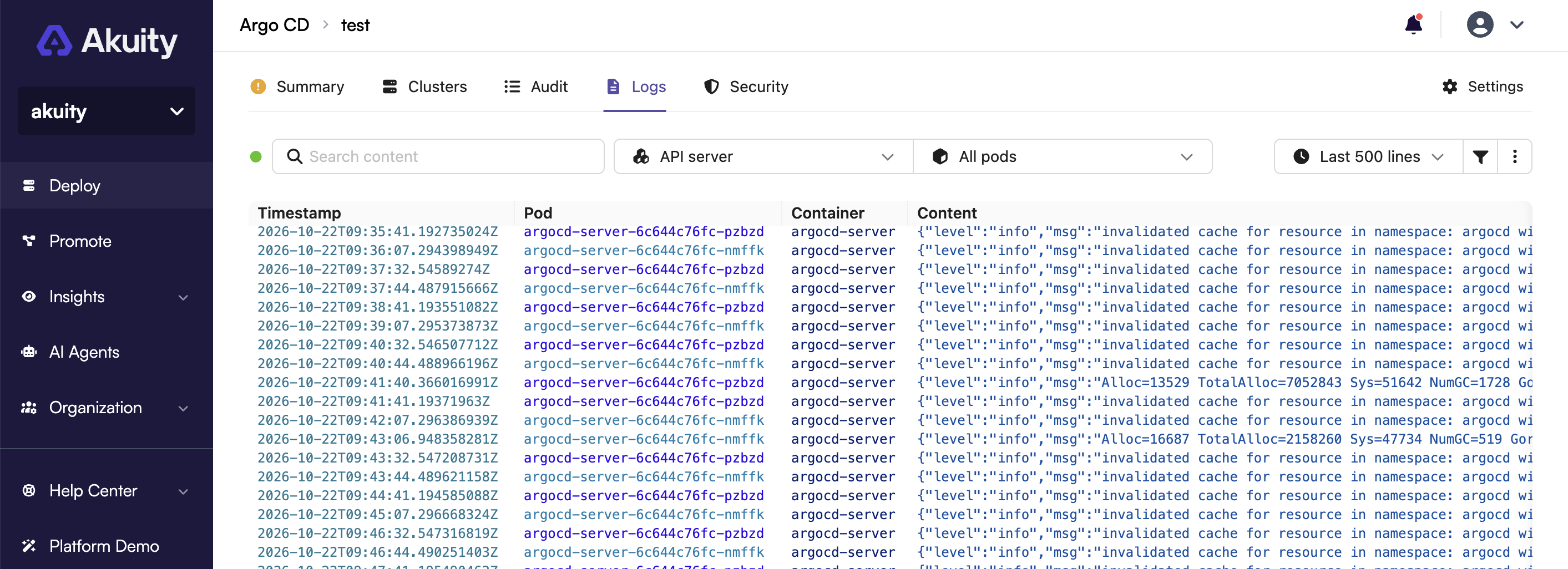
Navigate to Argo CD → your instance → Logs.
-
Select the Component. Pick a Pod to narrow the stream, or leave it unset to merge every pod of the component.
-
Choose a Range: the last 500 to 5000 lines, or the last 15 minutes, hour, or 6 hours.
-
Type in Search content to filter the loaded lines.
Under Filters you can show or hide the timestamp, pod, and container columns, keep Errors only, or read the logs from Before last restart to see why a container crashed.
Under Actions you can Follow the stream as new lines arrive, toggle Wrap lines, Reload, Clear the view, copy the lines, or download them as a text file.
The viewer keeps up to 5000 lines. When a time range holds more, only the latest 5000 are shown, and Errors only filters those loaded lines.
CLI
The Akuity CLI streams the logs of one component with akuity argocd instance logs:
akuity argocd instance logs <instance-name> \
  --organization-name <organization-name> \
  --component argocd-server \
  --tail 100 \
  --follow
Limits on followed streams
To protect the control plane, an instance can have two followed streams open at the same time, and a followed stream is closed after one hour. Open it again to keep following. Reading logs without following, such as the last 100 lines, is not limited.