Custom MCP Servers
This feature lets organizations extend Akuity Intelligence by connecting customer-provided MCP servers to the existing tool-calling framework. With context-aware parameter mapping, the integration expands Akuity Intelligence from a Kubernetes/Argo CD specialist into a comprehensive DevOps automation assistant capable of cross-platform incident response and notification management.
Before adding a Custom MCP Server, make sure you have:
- A running MCP server reachable from the Akuity Platform.
- Valid credentials (such as a bearer token, API key, or basic auth) authorized to call the server.
Add Custom MCP Server
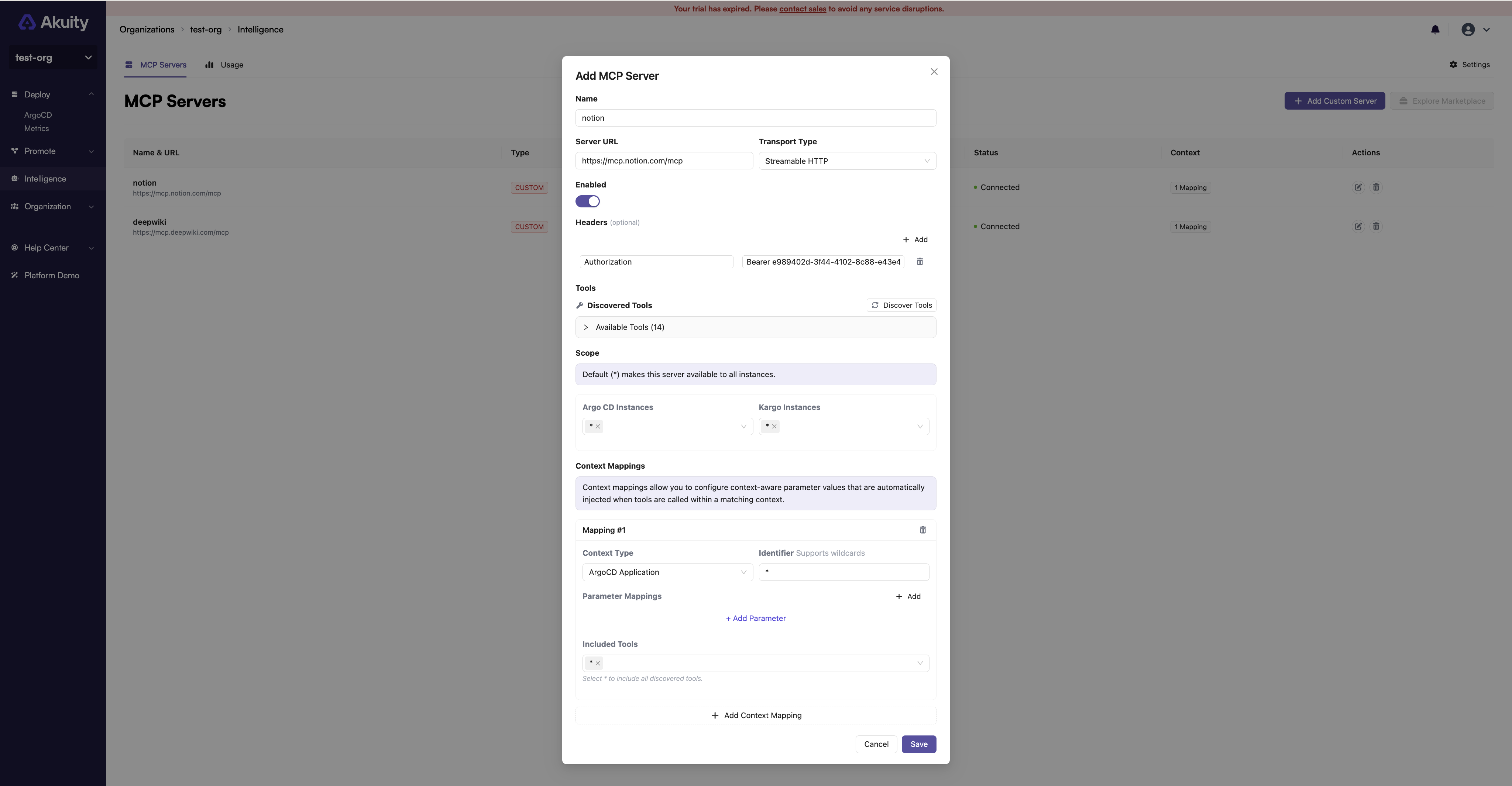
From the Intelligence → MCP Servers page, click Add Custom Server and fill in the following fields:
-
Name (required): A unique display name for this MCP server.
-
Server URL (required): The endpoint of the MCP server (for example,
https://mcp.example.com/mcp). -
Transport Type (required): The protocol used to communicate with the MCP server. Supported transports:
- Streamable HTTP — recommended for new deployments.
- SSE — for legacy MCP servers using Server-Sent Events.
-
Credentials: The authentication used when calling the server. Choose the method supported by your MCP server (for example, bearer token, API key header, or basic auth). Credentials are stored securely and are never exposed in the UI after they are saved.
-
Tools: The discovered tools are used when configuring
Context Mappingsso parameters can be bound to the right tool inputs. Ensure the MCP headers (transport, URL, and credentials) are correct before triggering tool discovery; otherwise the request will fail and no tools will be returned.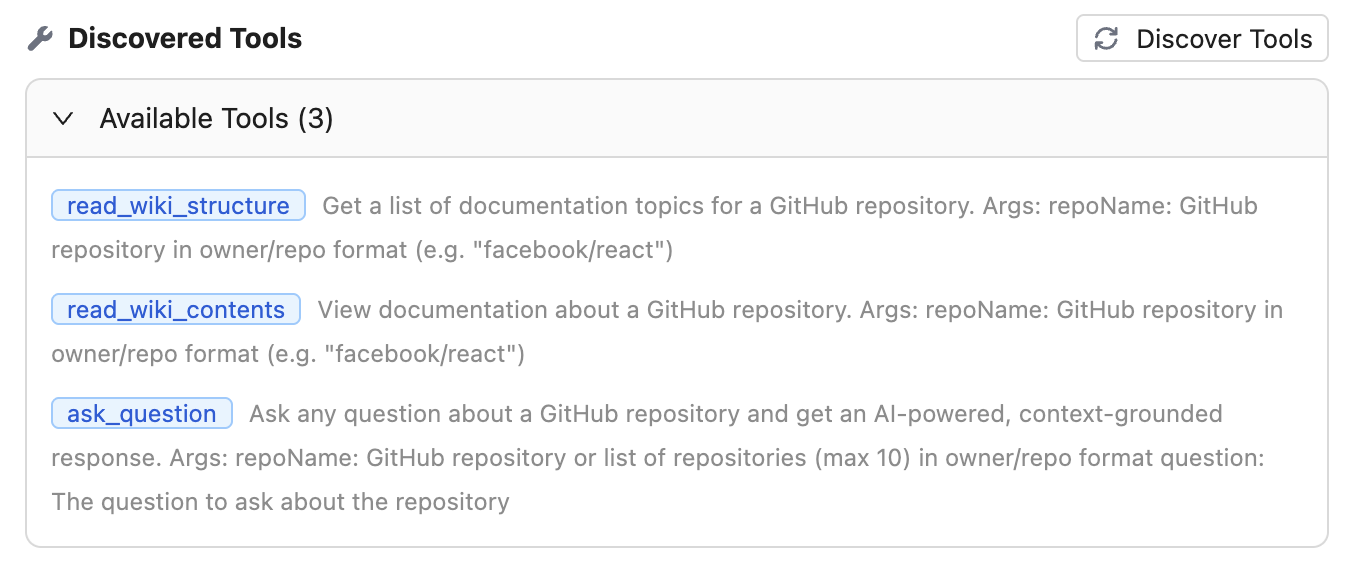
-
Scope: Binds the MCP server to the Argo CD Instance or Kargo Instance you select. The server's tools are exposed to Akuity Intelligence only when it operates within the selected instance.
-
Context Mappings: Context mappings let you bind an MCP server to specific contexts and pre-fill server parameters from the selected context. To configure a context mapping:
- In the Context Mappings section, click Add Context Mapping.
- Choose the context type Argo CD Application, Argo CD Instance, Argo CD Cluster, Kargo Project, or Kubernetes Namespace.
- Map the relevant context fields to the server parameters.
- Save the mapping.
Once all fields are filled in and any context mappings are configured, click Save to register the server. Akuity Intelligence will connect to the server and attempt to discover its tools.
Manage Custom MCP Server
The MCP Servers page lists every registered Custom MCP Server alongside its connection status, scope, and available actions. Use this page to enable or disable servers, inspect discovered tools, and review configuration.
Enable or disable a server
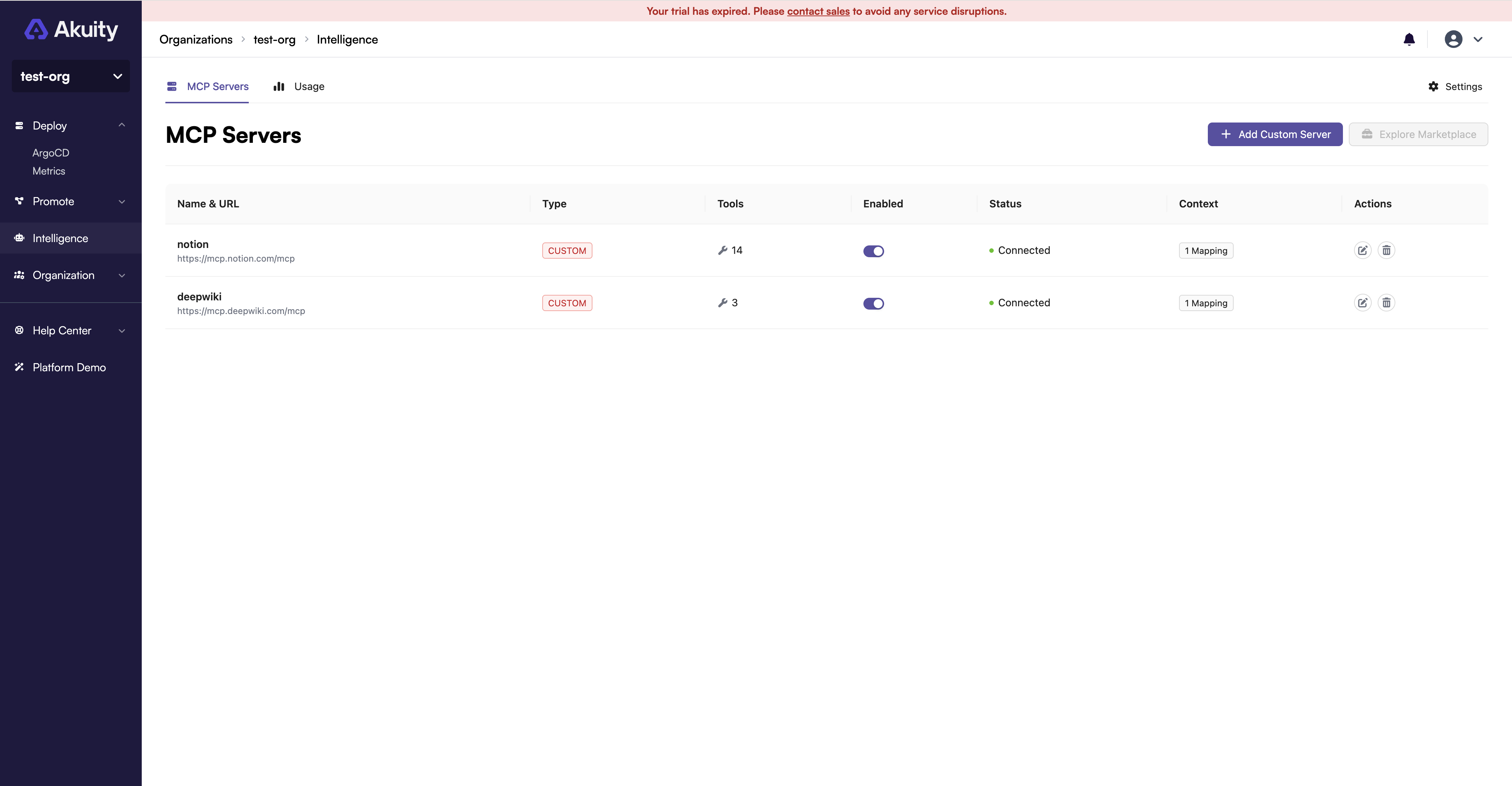
Use the Enable switch in the server row to control whether Akuity Intelligence can call the server's tools. Disabling a server keeps its configuration intact but removes its tools from the available tool list until it is re-enabled.
Inspect discovered tools
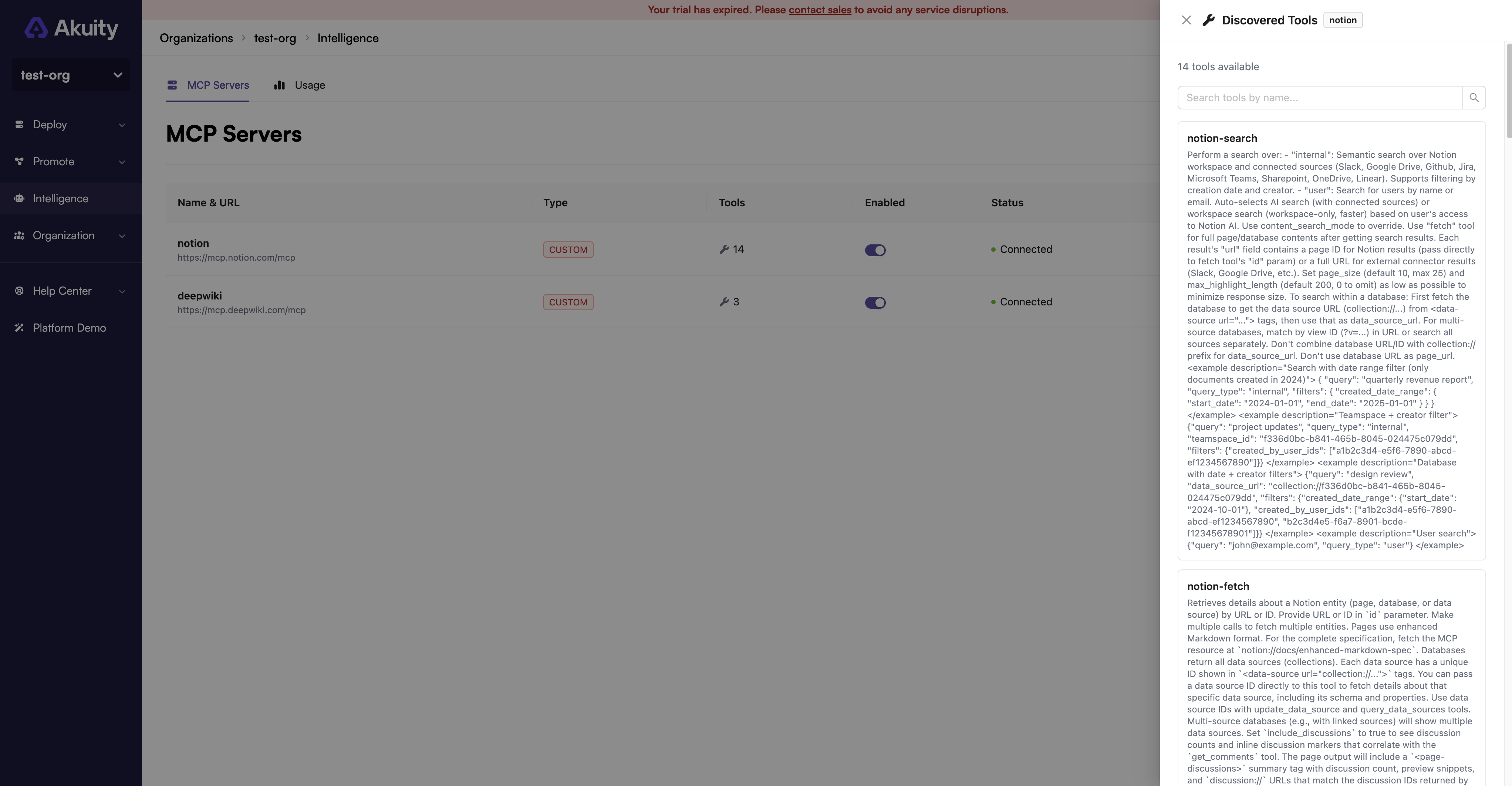
Click the Tools icon in the server row to open the tool list. For each tool, the panel displays:
- The tool name and description reported by the MCP server.
- The input parameter schema, including parameter names, types, and whether each parameter is required.
- Any context mappings that pre-fill parameter values from the active resource.
Use Custom MCP Server
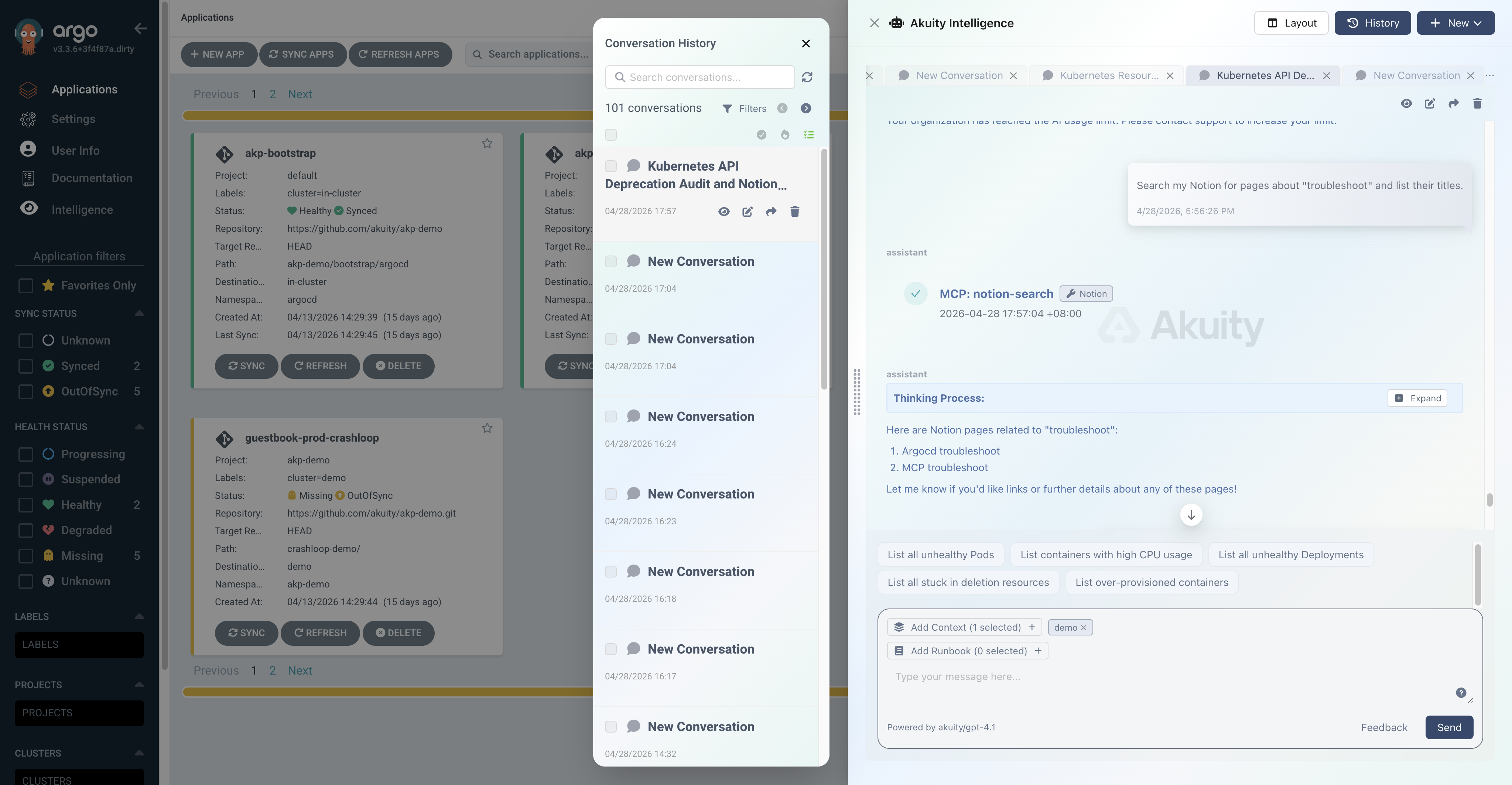
Once a Custom MCP Server is installed and enabled, its tools are available to Akuity Intelligence alongside the built-in tools. Follow these steps to use a Custom MCP Server:
- Confirm the server shows a
Connectedstatus on the MCP Servers page. If it is not connected, Akuity Intelligence cannot call its tools. - Open a chat with Akuity Intelligence from the Floating Button or from the context of a specific resource (Argo CD Application, Kargo Project, or Kubernetes Namespace). Make sure the resource has been configured in the server's
Context Mappingsso Akuity Intelligence can resolve the right parameters. - Ask Akuity Intelligence to perform a task that maps to one of the server's tools (for example, "open an incident in PagerDuty for this application" or "post a deployment summary to Slack"). Akuity Intelligence selects the appropriate tool, applies the configured context mappings to pre-fill parameters, and calls the MCP server.
- Review the response to confirm the tool call succeeded.