Maintenance Mode
Maintenance Mode allows you to temporarily exclude managed clusters from health monitoring and alerting when performing planned maintenance activities. This feature helps prevent false alerts during scheduled maintenance windows while ensuring monitoring is automatically restored after the maintenance period. You maintain full control to disable maintenance mode at any time. The Argo CD applications continue to sync and deploy normally and the cluster remains operational for application workloads.
Enabling Maintenance Mode
To enable maintenance mode for a managed cluster:
-
Navigate to your Argo CD instance → Clusters tab.
-
Find the cluster you want to put into maintenance mode.
-
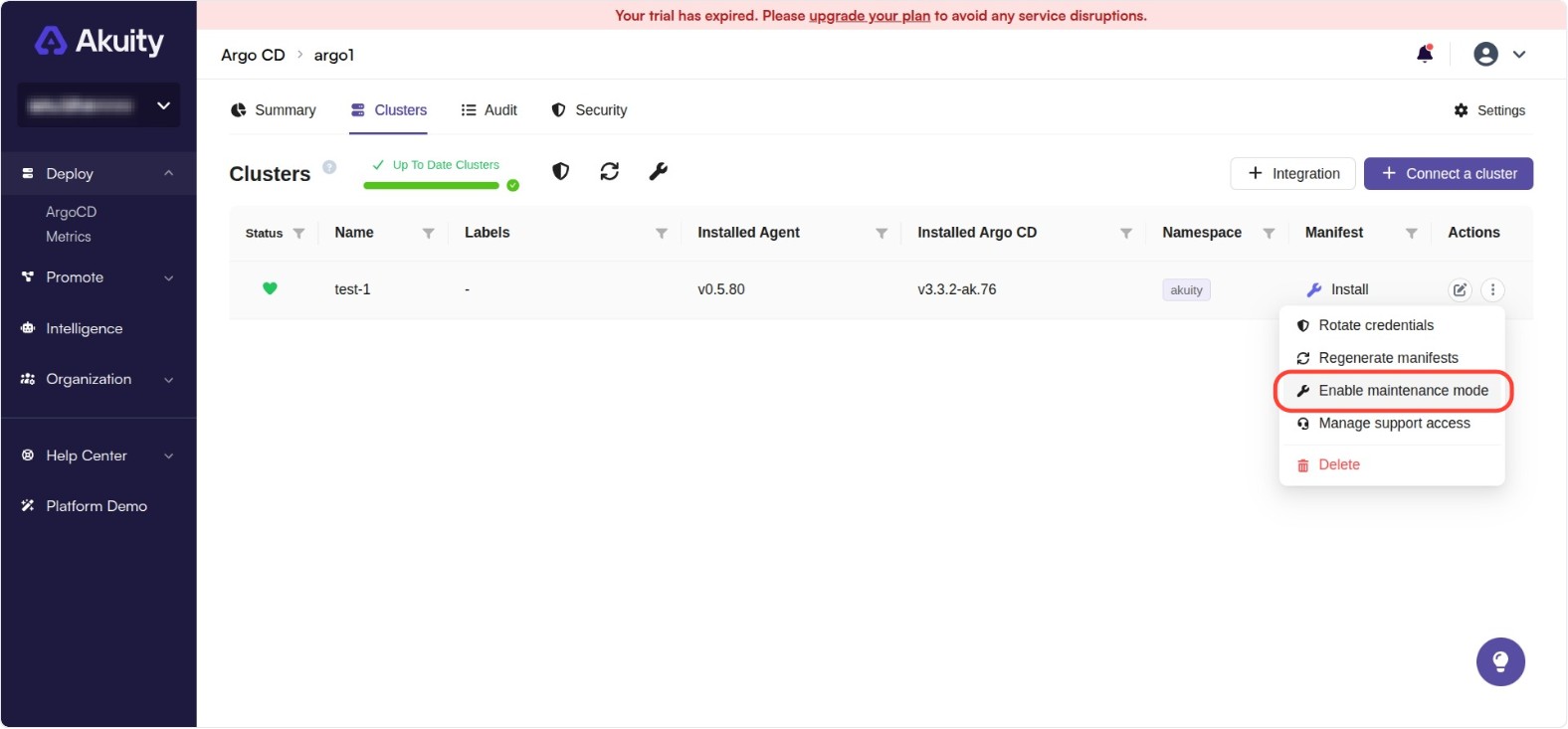
Under the Actions column, click on the three-dot button.
-
Locate the Enable Maintenance Mode section.
-
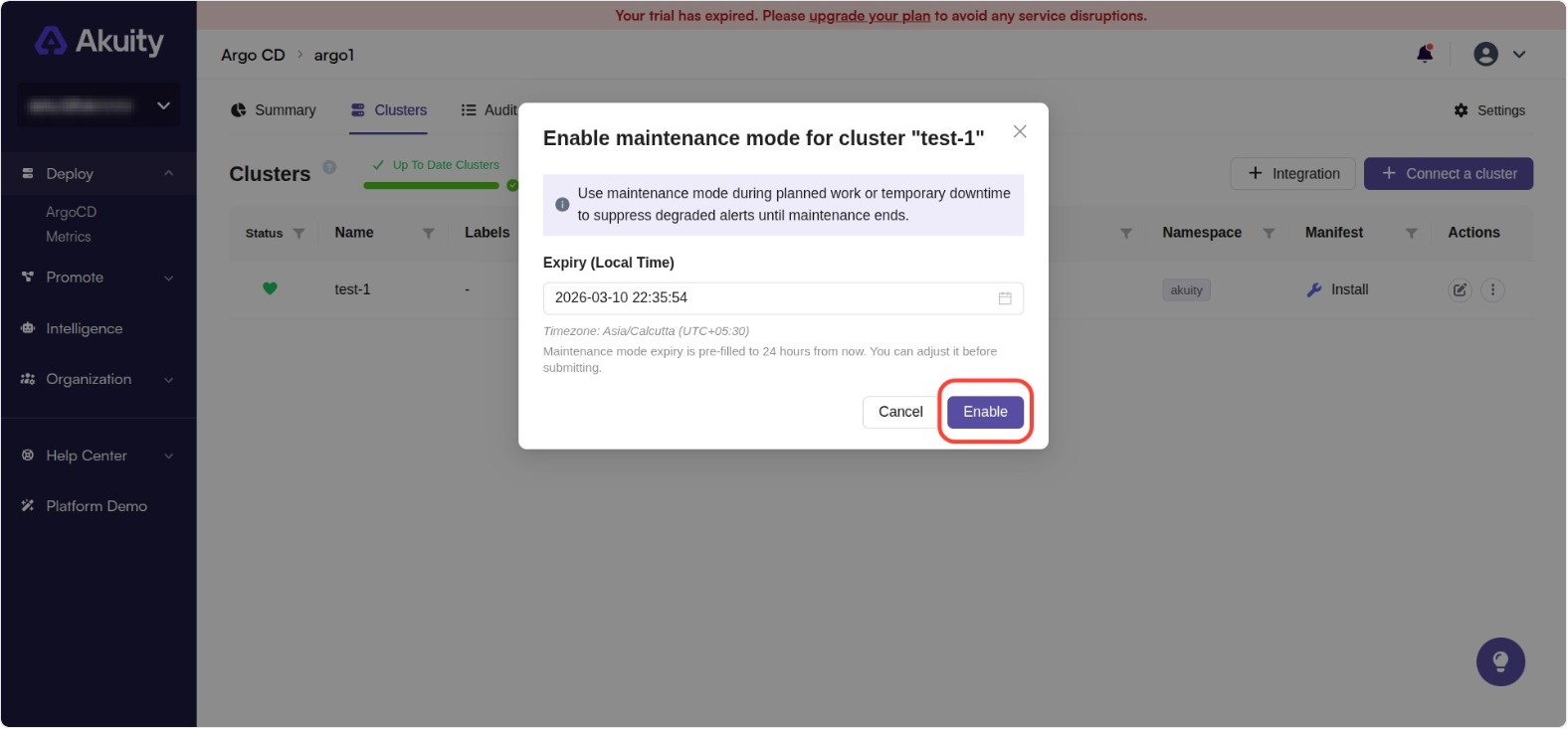
Enter the expiration day and time for maintenance mode. This is the date and time when maintenance mode will automatically expire and monitoring will be restored.
-
Click Save to apply the changes.
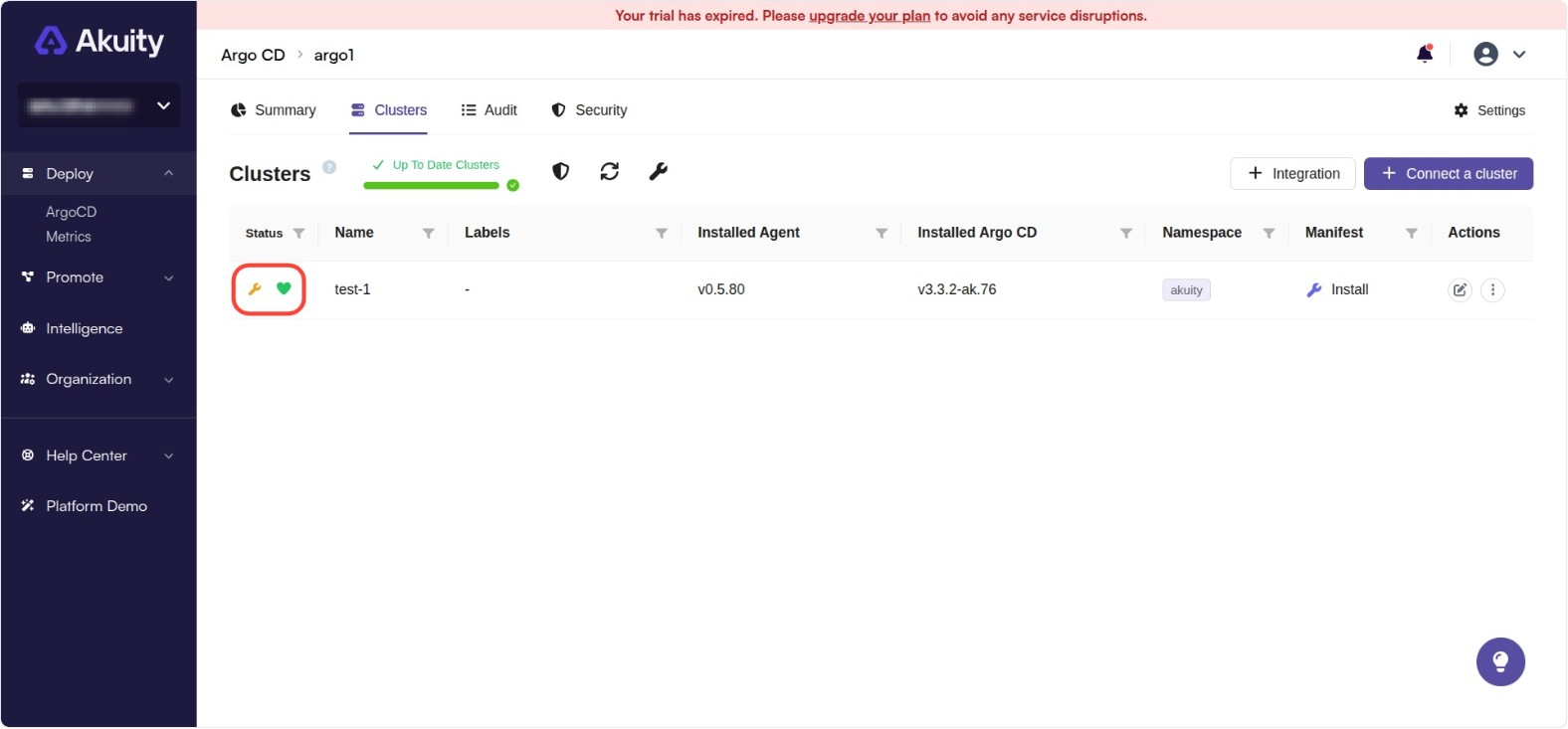
Once enabled, the cluster will be excluded from health monitoring and alerting. The 🔧 icon indicates that the cluster is in maintenance mode.
Disabling Maintenance Mode
Maintenance mode can be disabled in the following ways:
Automatic Expiration
Maintenance mode will be automatically disabled after the expiration time that you set to ensure monitoring is restored. If maintenance activities require more time, you will need to manually re-enable maintenance mode.
Manual Disabling
To manually disable maintenance mode before the expiration time:
-
Navigate to the cluster actions as described above.
-
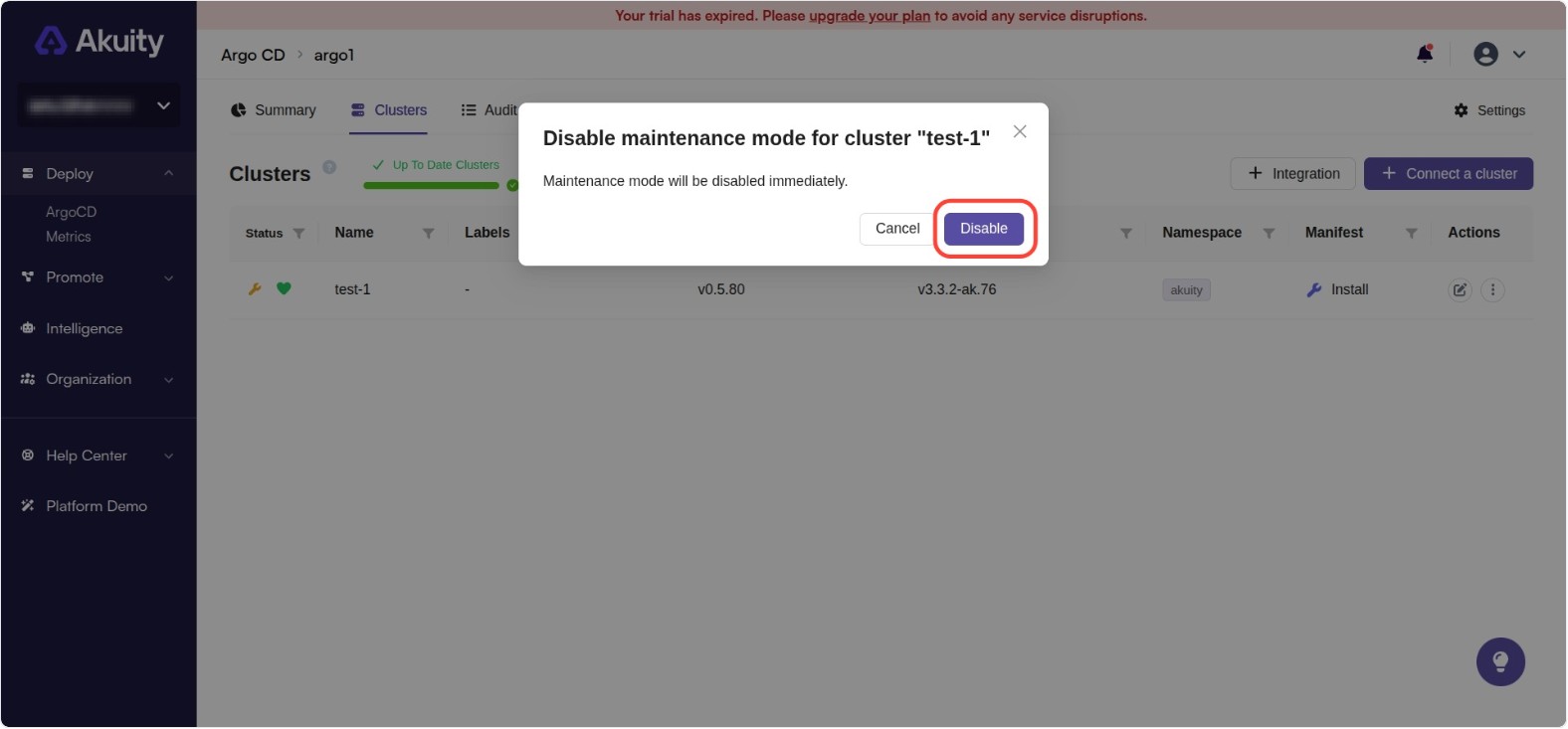
Locate the Disable Maintenance Mode section.
-
Click Disable to apply the changes.