Custom MCP Servers
This feature lets organizations extend AI Agents by connecting customer-provided MCP servers to the existing tool-calling framework. With context-aware parameter mapping, the integration expands the agents from Kubernetes/Argo CD specialists into comprehensive DevOps automation assistants capable of cross-platform incident response and notification management.
Before adding a Custom MCP Server, make sure you have:
- A running MCP server reachable from the Akuity Platform.
- Valid credentials (such as a bearer token, API key, or basic auth) authorized to call the server.
Add Custom MCP Server
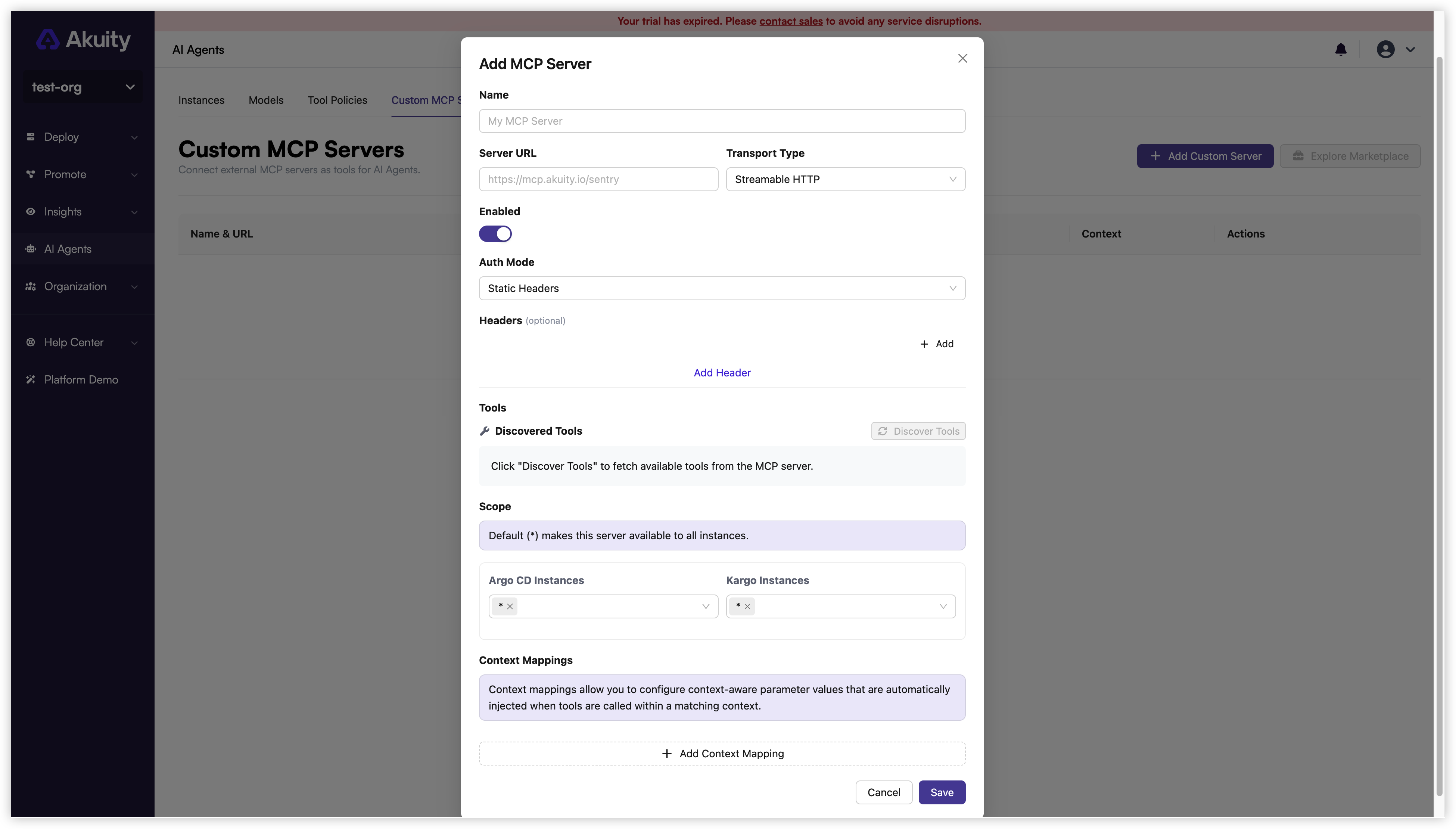
From the AI Agents → Custom MCP Servers page, click Add Custom Server and fill in the following fields:
-
Name (required): A unique display name for this MCP server.
-
Server URL (required): The endpoint of the MCP server (for example,
https://mcp.example.com/mcp). -
Transport Type (required): The protocol used to communicate with the MCP server. Supported transports:
- Streamable HTTP — recommended for new deployments.
- SSE — for legacy MCP servers using Server-Sent Events.
-
Auth Mode: Choose Static Headers or OAuth, depending on the authentication supported by your MCP server. For static authentication, enter the required values in Headers, such as an
Authorizationheader or an API key header. -
Tools: The discovered tools are used when configuring
Context Mappingsso parameters can be bound to the right tool inputs. Ensure the transport, URL, and authentication settings are correct before clicking Discover Tools; otherwise the request will fail and no tools will be returned. -
Scope: Select the Argo CD Instances and Kargo Instances where the server's tools should be available. The default
*includes all instances; replace it with specific instances to limit access. -
Context Mappings: Context mappings let you bind an MCP server to specific contexts and pre-fill server parameters from the selected context. To configure a context mapping:
- In the Context Mappings section, click Add Context Mapping.
- Choose the context type Argo CD Application, Argo CD Instance, Argo CD Cluster, Kargo Project, or Kubernetes Namespace.
- Map the relevant context fields to the server parameters.
- Save the mapping.
Once all fields are filled in and any context mappings are configured, click Save to register the server. The Akuity Platform will connect to the server and attempt to discover its tools.
Manage Custom MCP Server
The Custom MCP Servers page lists every registered Custom MCP Server alongside its connection status, discovered tool count, and available actions. Use this page to enable or disable servers, inspect discovered tools, and review configuration.
Enable or disable a server
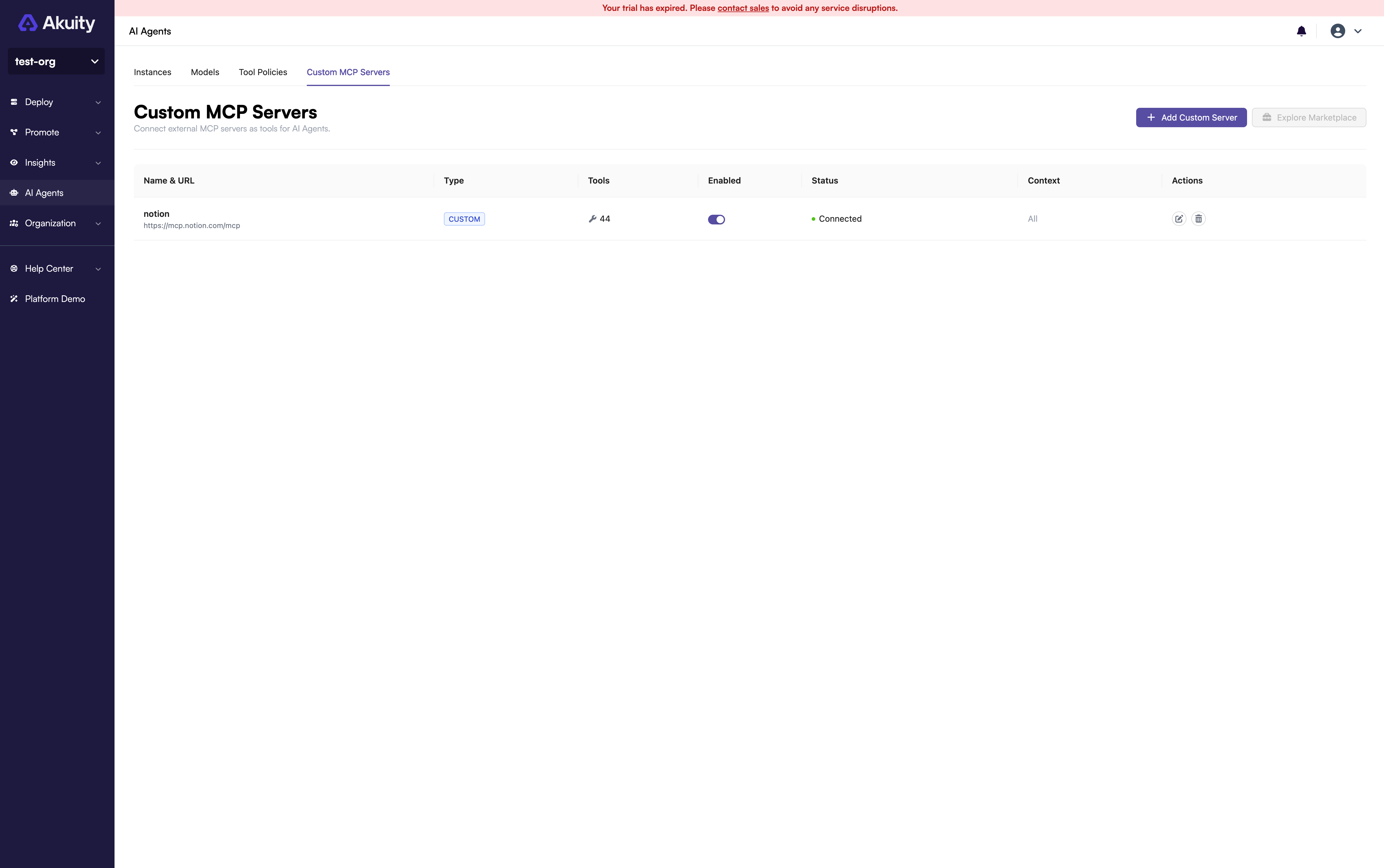
Use the Enabled switch in the server row to control whether AI Agents can call the server's tools. Disabling a server keeps its configuration intact but removes its tools from the available tool list until it is re-enabled.
Inspect discovered tools
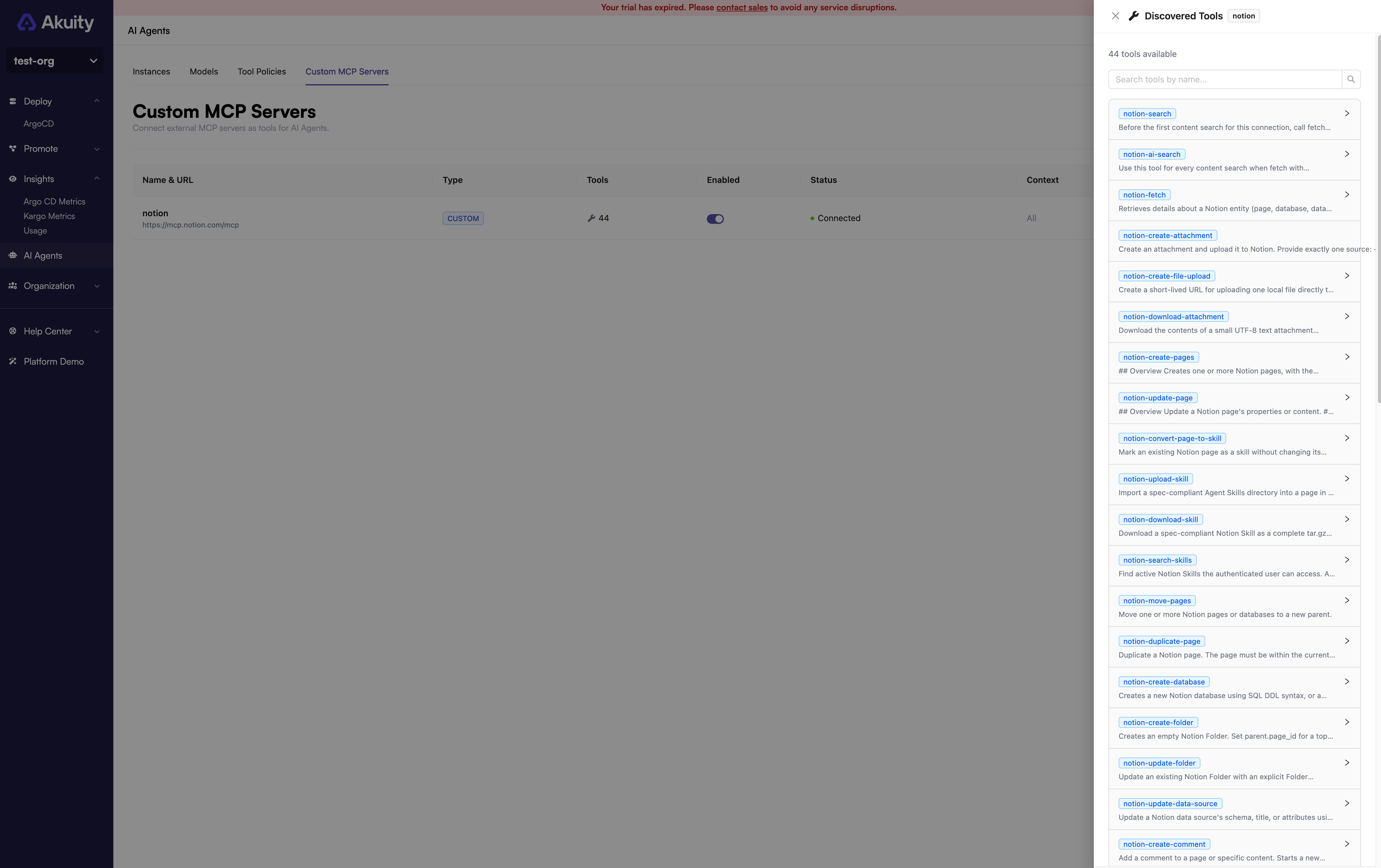
Click the tool count in the Tools column in the server row to open the tool list. For each tool, the panel displays:
- The tool name and description reported by the MCP server.
- The input parameter schema, including parameter names, types, and whether each parameter is required.
- Any context mappings that pre-fill parameter values from the active resource.
Use Custom MCP Server
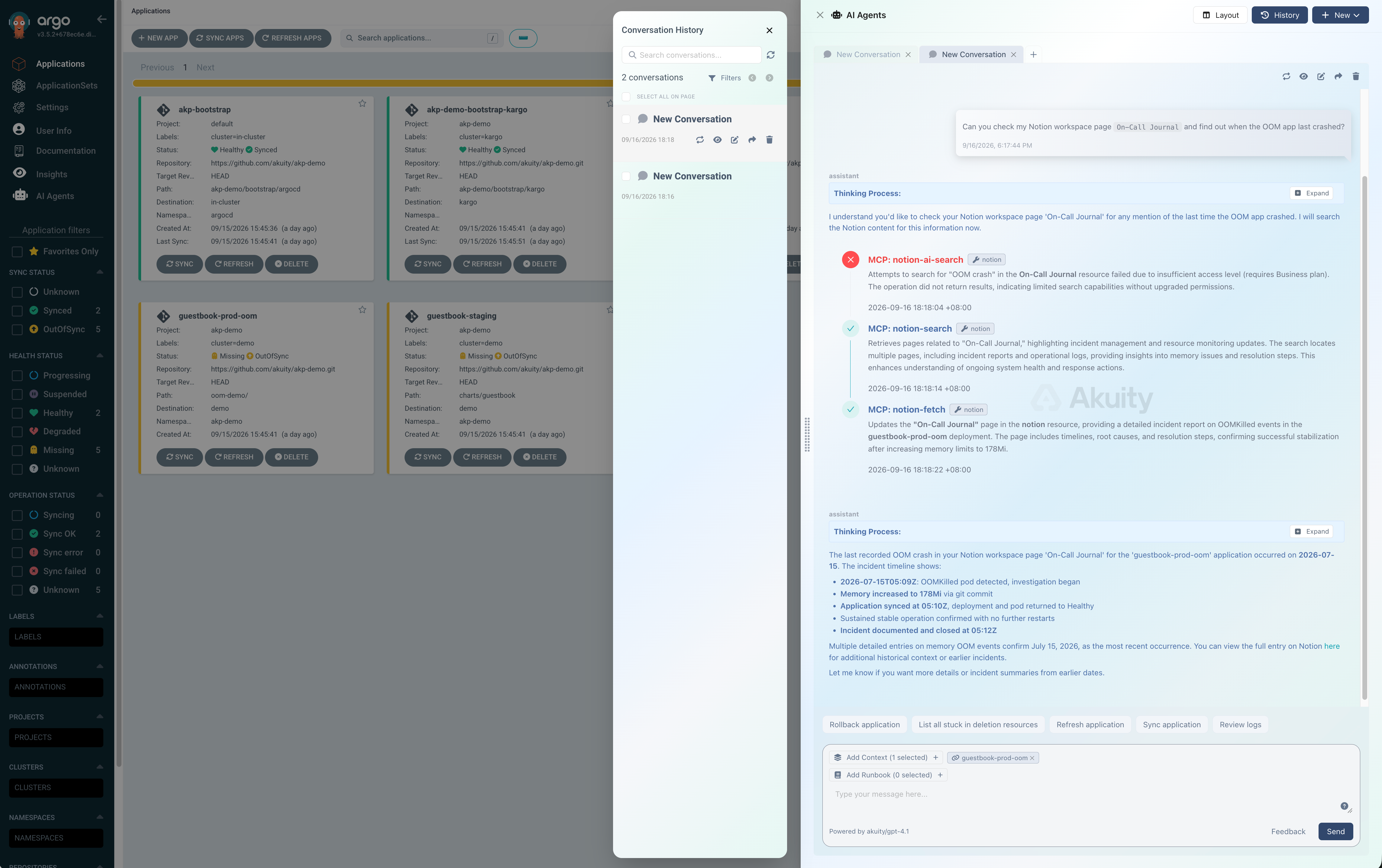
Once a Custom MCP Server is installed and enabled, its tools are available to AI Agents alongside the built-in tools. Follow these steps to use a Custom MCP Server:
- Confirm the server shows a
Connectedstatus on the MCP Servers page. If it is not connected, the agents cannot call its tools. - Open a chat with the Deployment Advisor from the Floating Button or from the context of a specific resource (Argo CD Application, Kargo Project, or Kubernetes Namespace). Make sure the resource has been configured in the server's
Context Mappingsso the agent can resolve the right parameters. - Ask the agent to perform a task that maps to one of the server's tools (for example, "open an incident in PagerDuty for this application" or "post a deployment summary to Slack"). The agent selects the appropriate tool, applies the configured context mappings to pre-fill parameters, and calls the MCP server.
- Review the response to confirm the tool call succeeded.