Enable AI Agents
Install the AI Agents extension to make the agent workspace and chat available in an Argo CD or Kargo instance. Incident and integration settings are configured separately from extension installation.
Prerequisites
- Install the Insights extension on the same Argo CD or Kargo instance before installing AI Agents.
- For resource-based diagnosis and incident detection, enable Insights collection for the relevant Argo CD instances and clusters.
Manage extensions
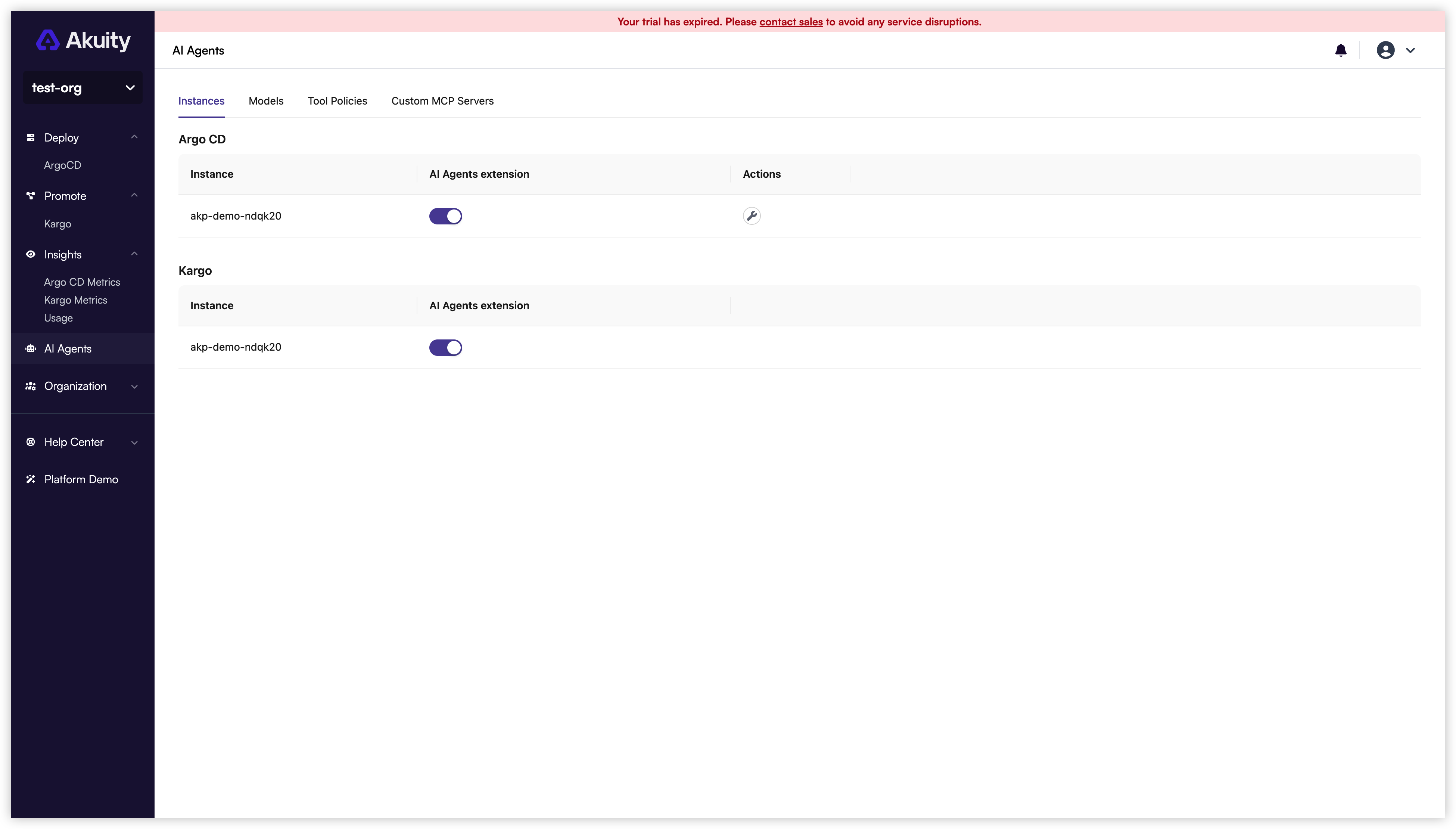
In the Akuity Portal, open AI Agents → Instances to view the AI Agents extension installation status for Argo CD and Kargo instances. Use the AI Agents extension switch to install or uninstall the extension on an instance.
This switch controls the same installation state as the AI Agents card under that instance's Settings → Extensions. Changes made through either entry point are reflected in both.
The switch requires instance update permission and an installed Insights extension.
Argo CD extension
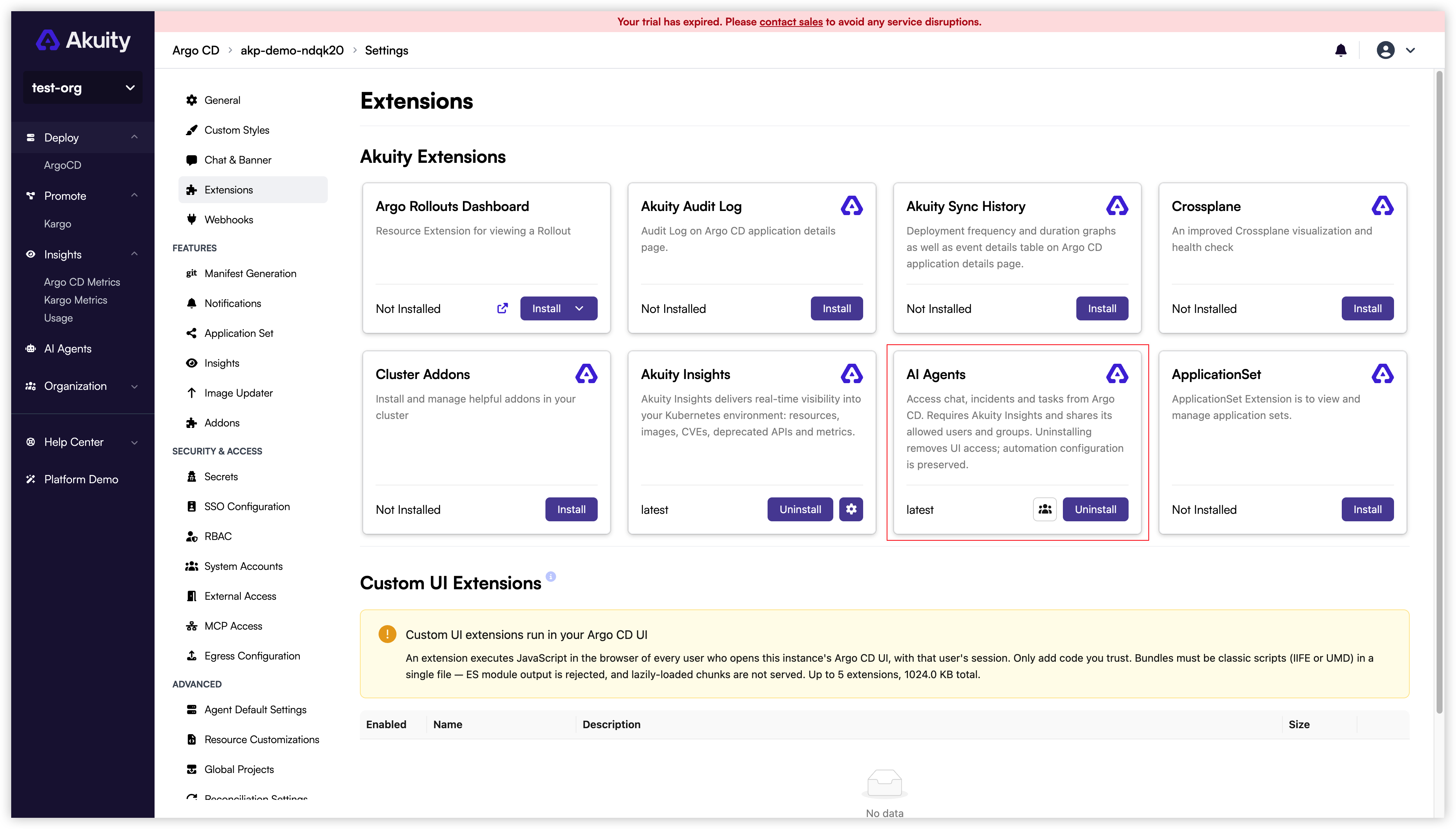
You can also manage the extension from the Argo CD instance's settings in the Akuity Portal:
- Open the Argo CD instance and navigate to Settings → Extensions.
- Install Insights if it is not already installed.
- On the AI Agents card, click Install or Uninstall.
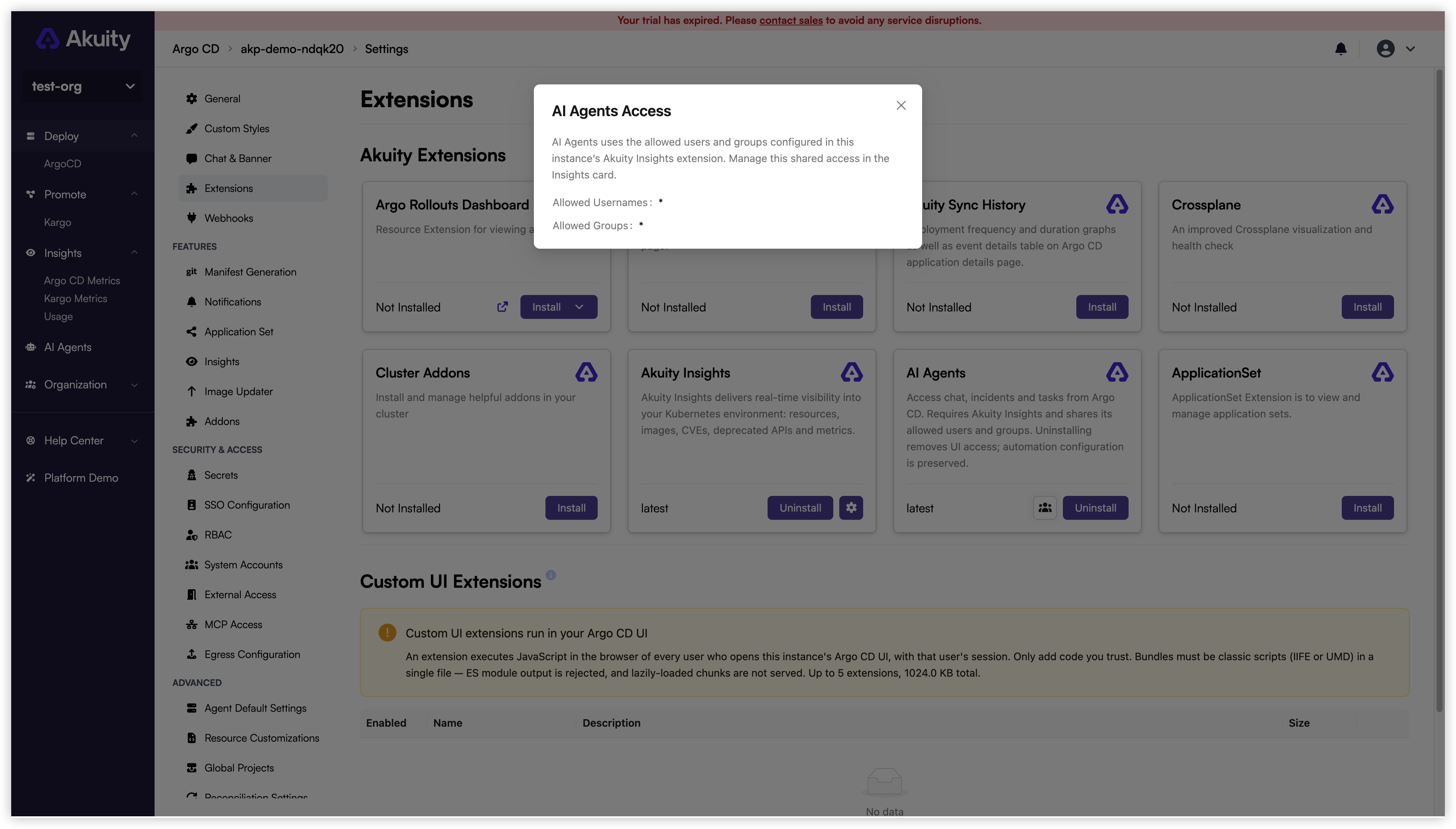
The AI Agents extension uses the same allowed users and groups as the Insights extension on this instance.
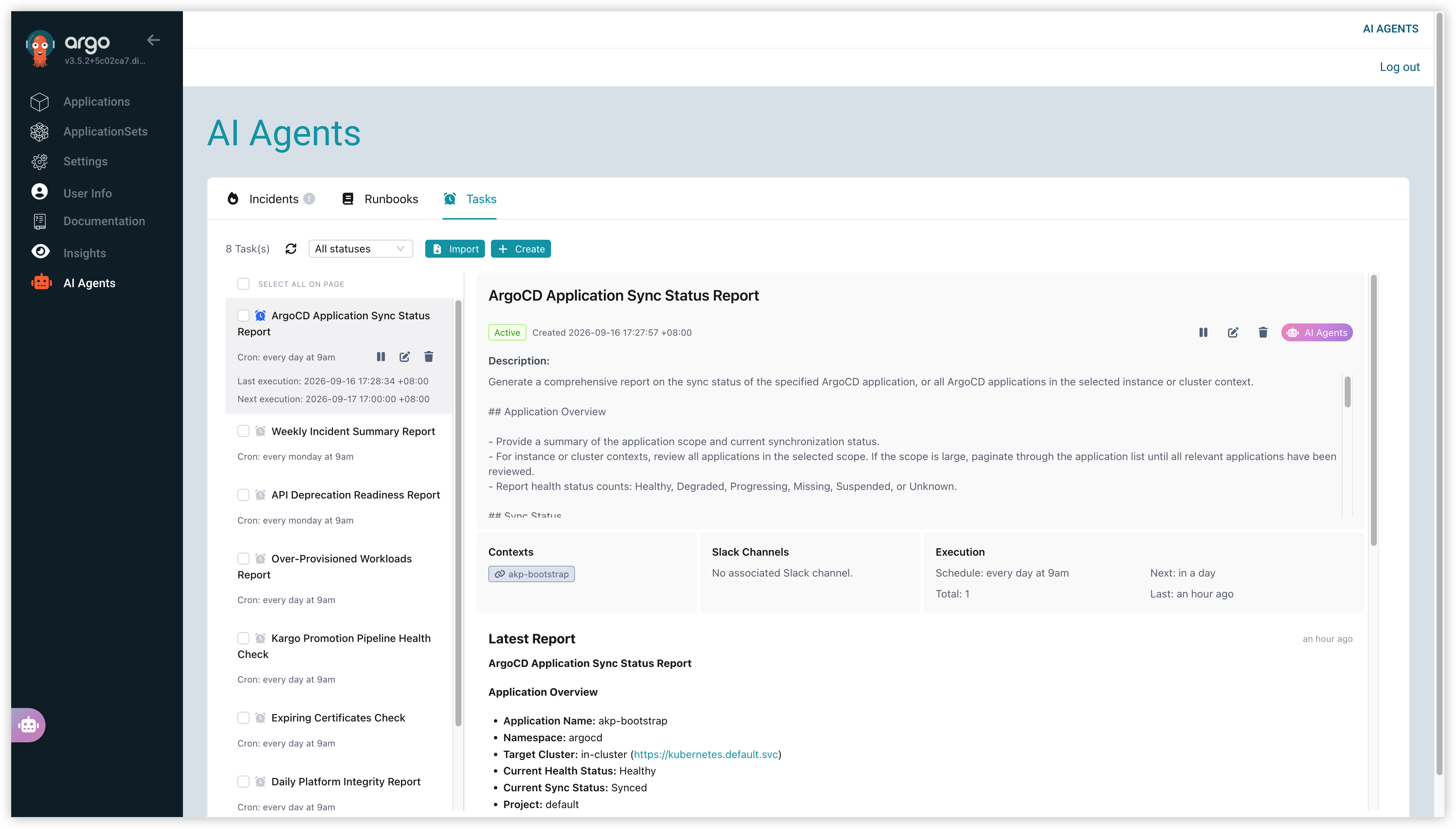
After installation, authorized users can open AI Agents in the Argo CD sidebar to work with incidents, runbooks, and tasks, or use the floating chat button to chat with the Deployment Advisor.
Kargo extension
You can also manage the extension from the Kargo instance's settings in the Akuity Portal:
- Open the Kargo instance and navigate to Settings → Extensions.
- Install Insights if it is not already installed.
- On the AI Agents card, click Install or Uninstall.
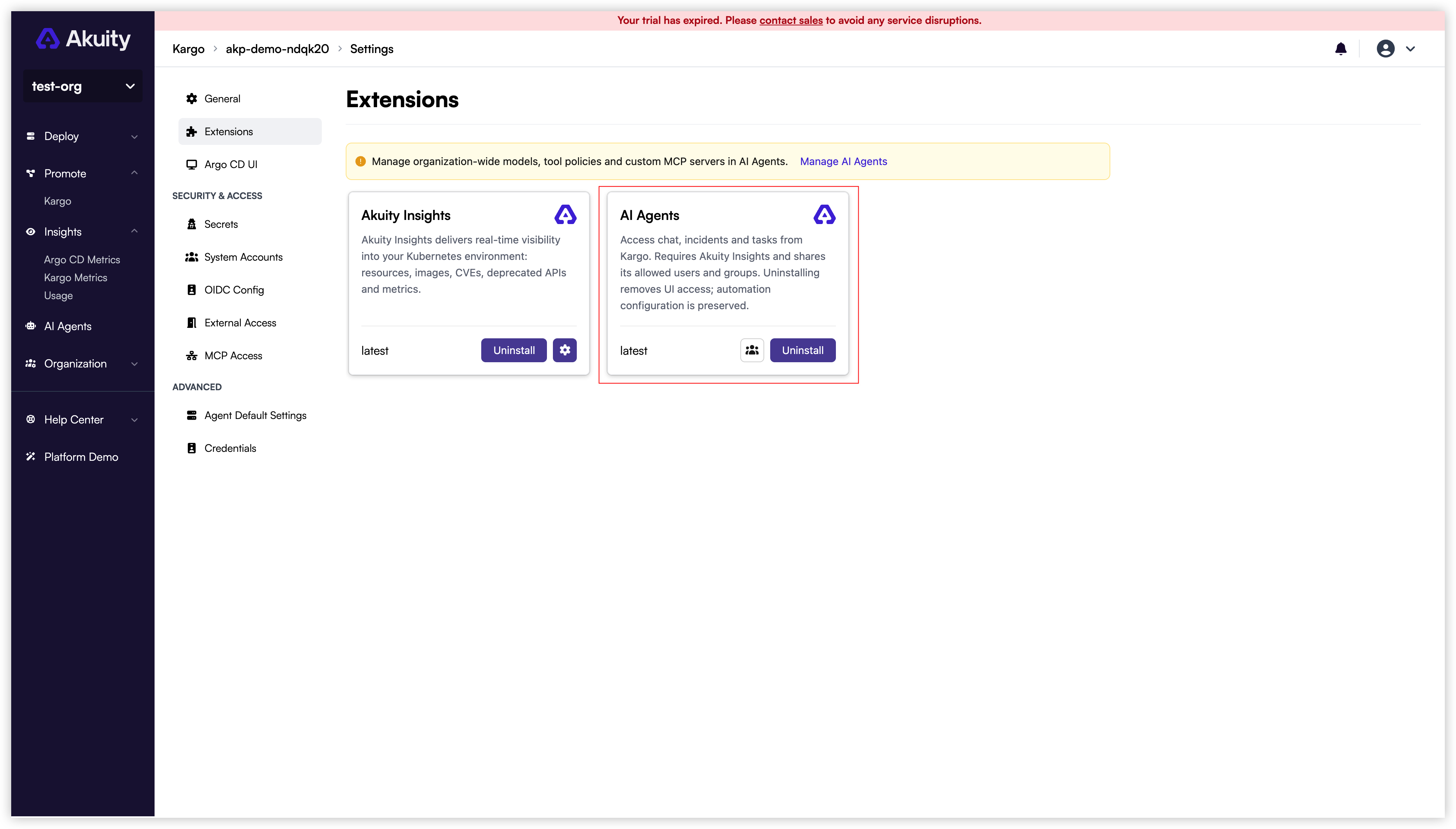
The AI Agents extension uses the same allowed users and groups as the Insights extension on this instance.
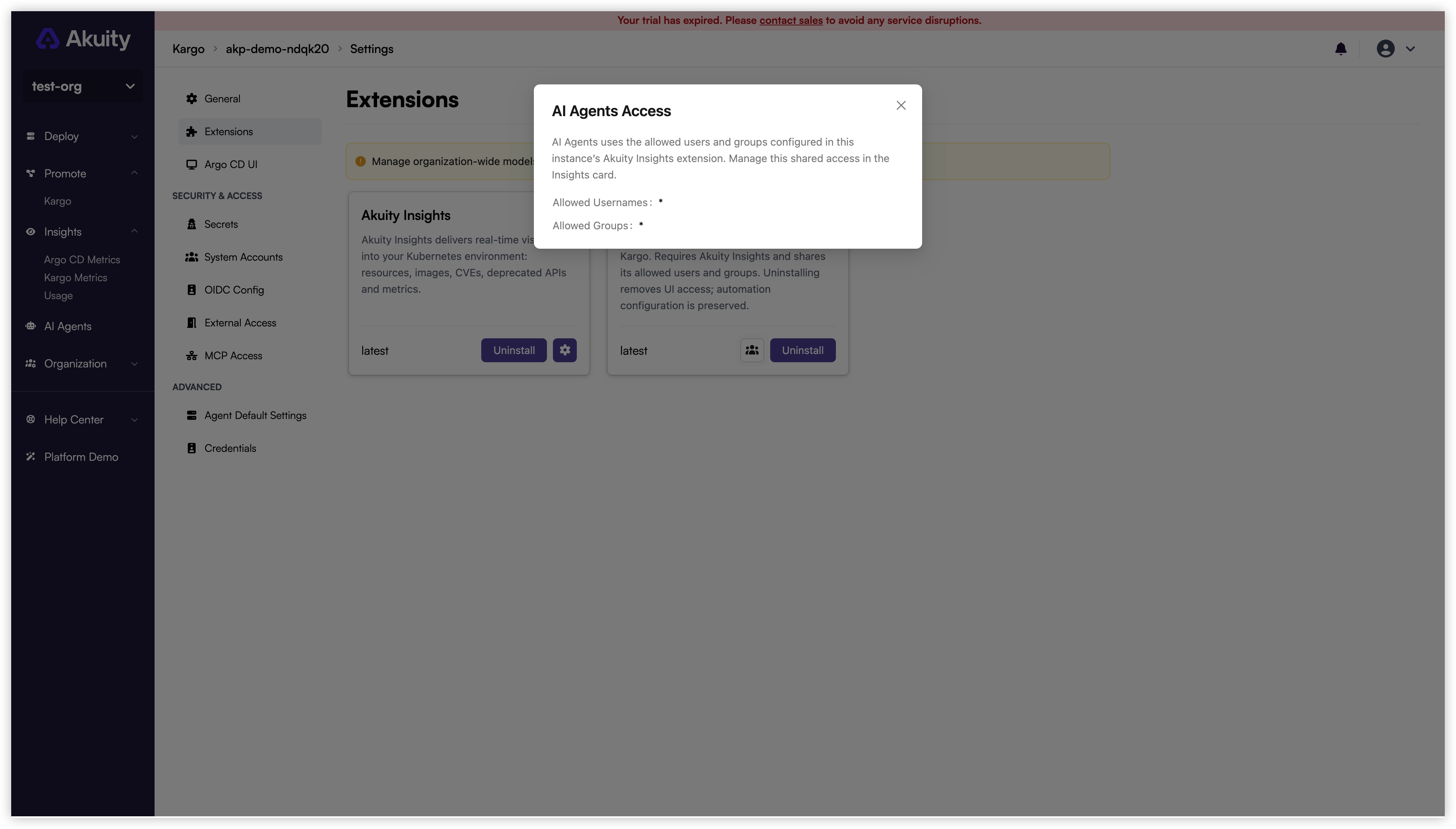
Authorized users can open AI Agents in the Kargo sidebar for incidents, runbooks, and tasks, or use the floating chat button. The Promotion Advisor is available in the promotion dialog.
Configure incidents and integrations
Incident and integration settings apply to the selected Argo CD instance, even though you access them from the organization-level AI Agents page.
In the Akuity Portal, open AI Agents → Instances and click the wrench button (Configure AI Agents) for an Argo CD instance. In the Agent Configuration drawer:
- Use Incidents for resource degradation triggers, webhook triggers, incident grouping, and investigation approval.
- Use Integrations to connect Slack services and configure Slack channels.
- Click Save to apply changes.
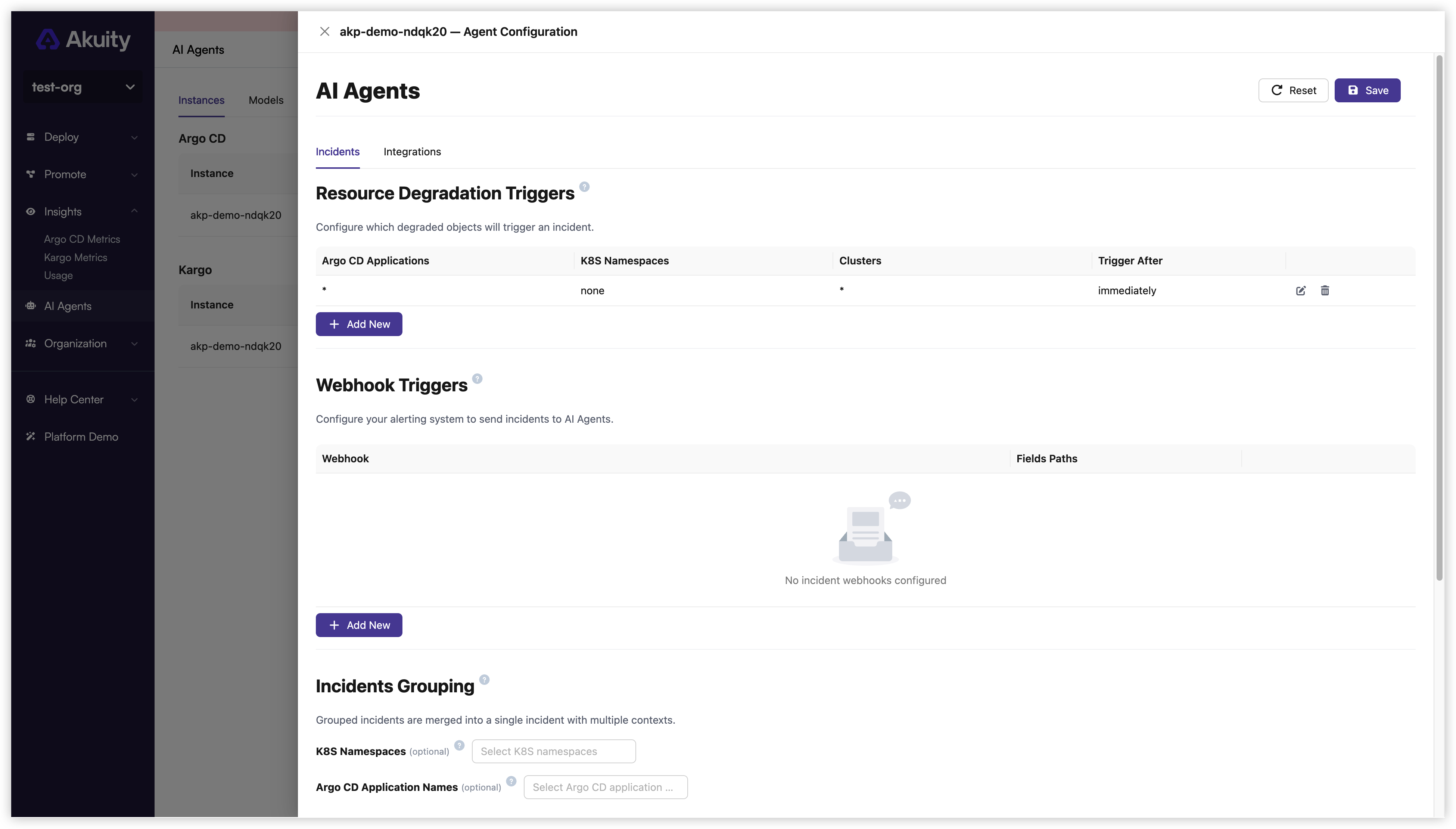
You can configure automation before installing the AI Agents extension or enabling Insights collection. For the detailed setup, see On-Call Agent. Cluster collection, resource customizations, and CVE scanning remain in the Argo CD instance's Settings → Insights page.
Open runbooks and tasks
In either dashboard, select AI Agents in the sidebar. Incidents, Runbooks, and Tasks are tabs in this workspace. Select Runbooks to manage the instructions used by the On-Call Agent, or Tasks to view scheduled tasks and their reports.
AI Agents usage
In the Akuity Portal, open Insights → Usage to monitor consumption grouped by Argo CD and Kargo instance.
The AI Token metric counts the tokens consumed by the agents. The remaining metrics (Instance, Cluster, API Resource, Object, Node, Pod, and Container) measure the resource inventory collected by Insights.