Enable Insights
Insights collects the Kubernetes resource inventory of selected clusters for each Argo CD instance. Users access the resource dashboards through the Insights extension in Argo CD or Kargo. The Akuity Portal's Insights navigation provides Argo CD Metrics, Kargo Metrics, and Usage.
Enable Insights at the Argo CD instance level
- In the Akuity Portal, open the Argo CD instance and navigate to Settings → Insights.
- Turn on Enabled.
- In Clusters, use the per-cluster Insights switches to choose which clusters to collect from, or click Enable for all clusters.
- Click Save and confirm the update. Enabling collection updates the managed cluster agents.
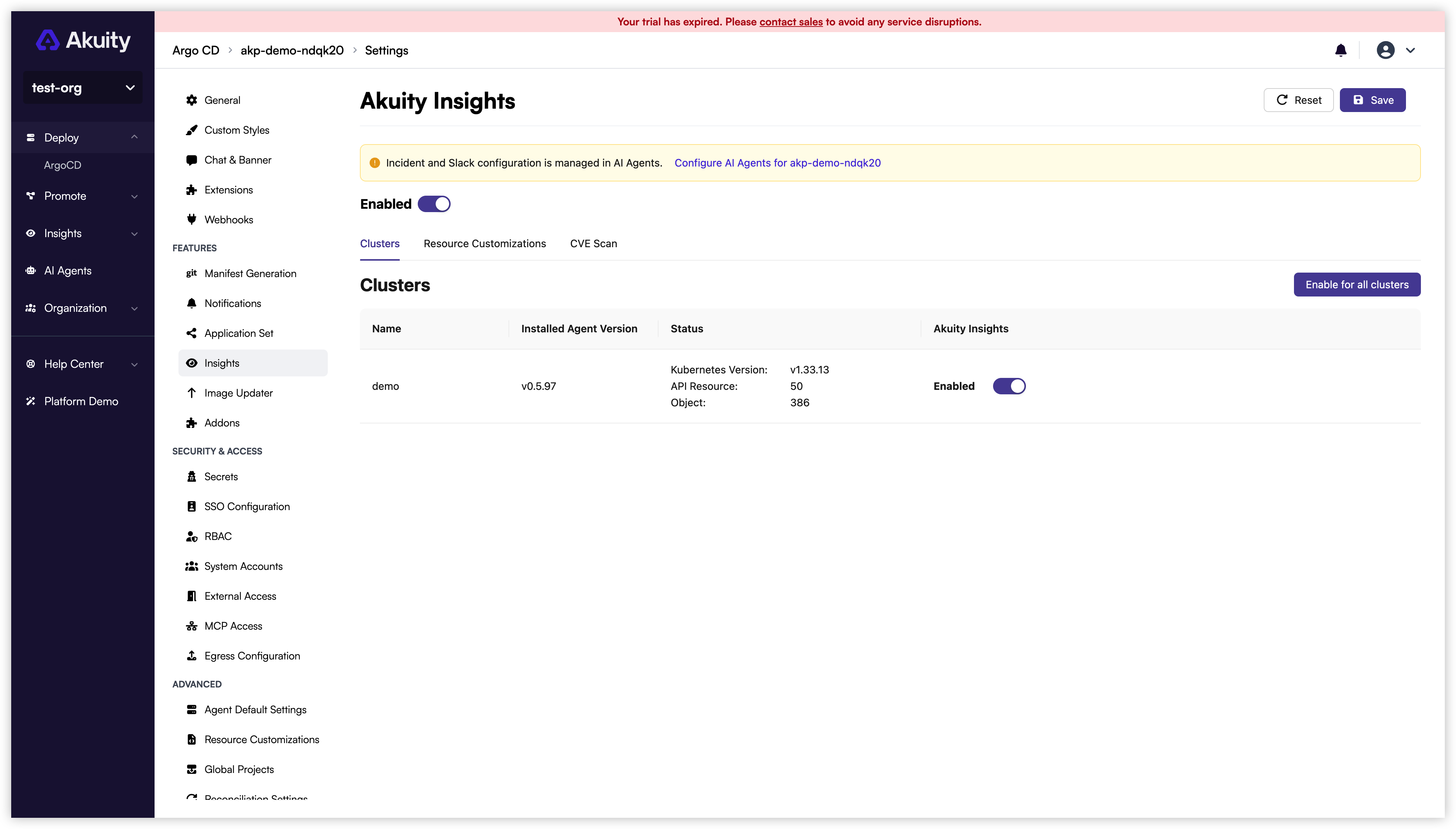
Resource customizations remain on this page under Resource Customizations. Incident and Slack configuration is managed separately under AI Agents.
Insights collection and extension installation are separate settings. Resource-based agent diagnosis and incident detection require Insights collection for the instance and relevant clusters. To make the agent workspace available to users, also install AI Agents.
Enable CVE scanning
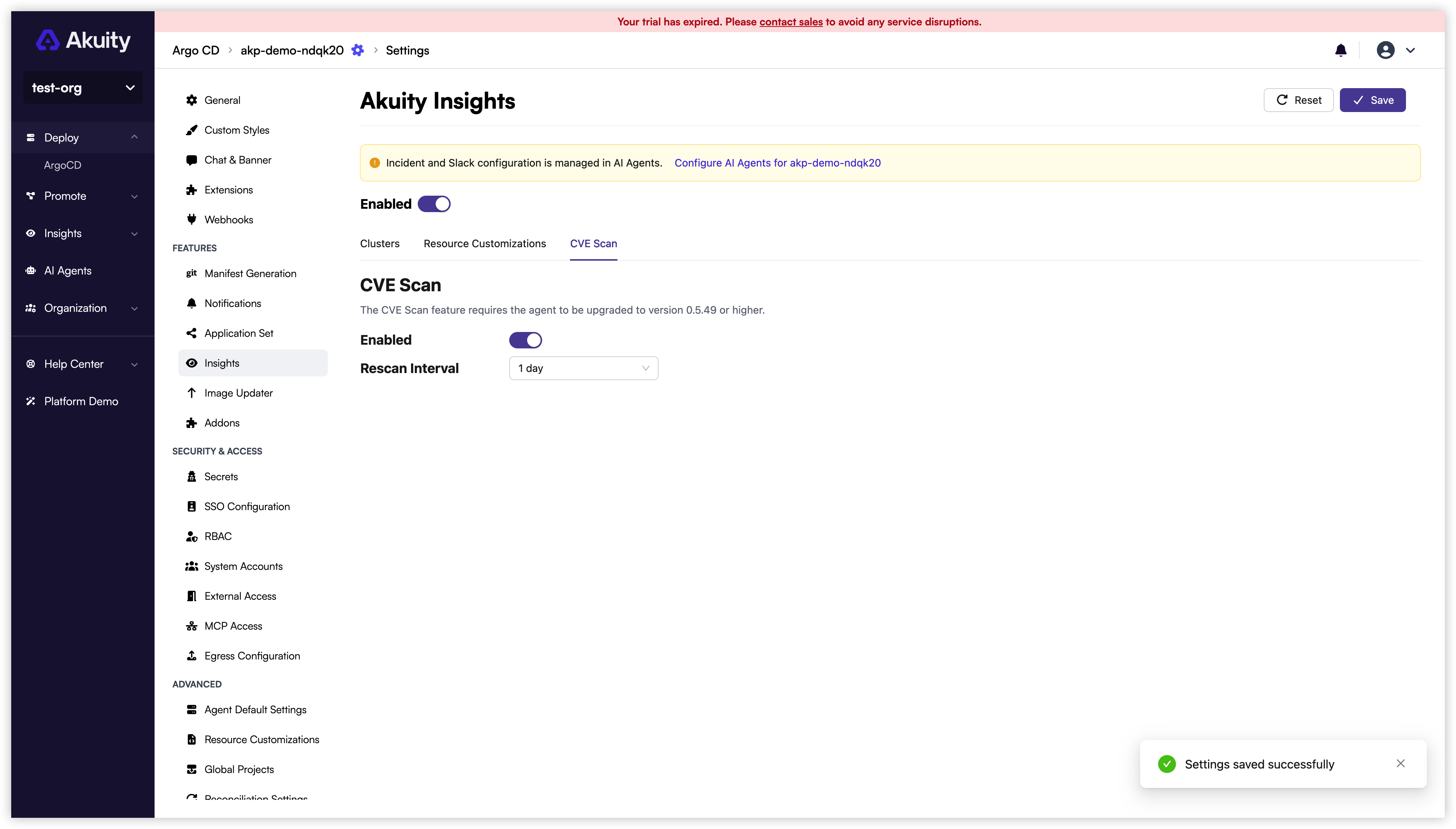
CVE scanning is optional and disabled by default. In Settings → Insights, open CVE Scan and turn on Enabled. Choose a Rescan Interval, click Save, and confirm the update. Changing CVE scanning updates the managed cluster agents. Results appear in the Images dashboard.
Manage Argo CD extension
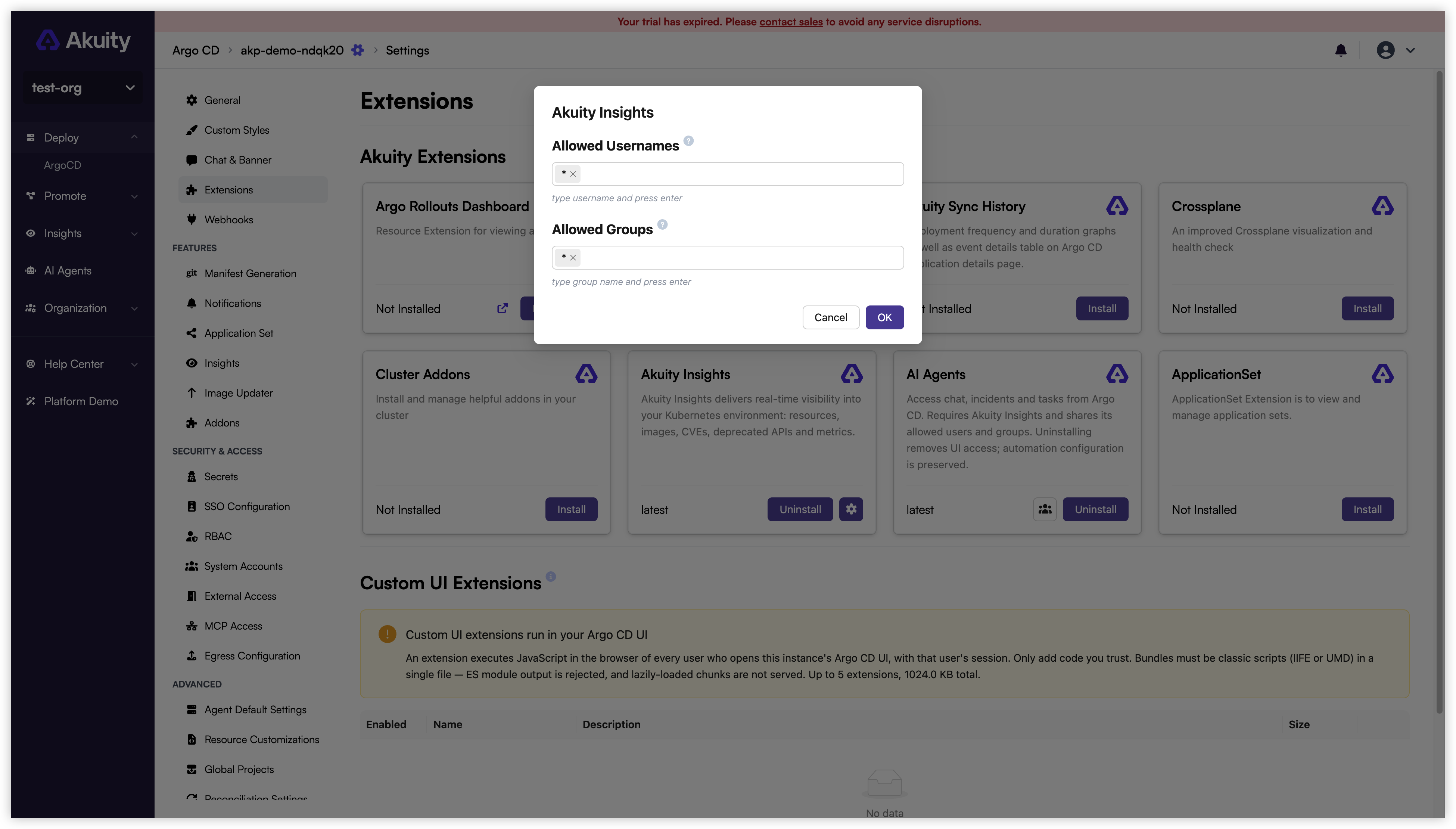
Open the instance's Settings → Extensions page and install Insights if it is not already installed. Click its gear button to configure the allowed Argo CD users and OIDC groups. This allowlist also controls access to the AI Agents extension.
Authorized Argo CD users can open Insights in the sidebar to view the resource dashboards. AI Agents is a separate extension with its own installation state.
Uninstalling the Insights extension also uninstalls AI Agents while preserving incident and integration configuration. Reinstalling Insights does not automatically reinstall AI Agents.
Disabling collection under Settings → Insights removes stored Kubernetes resource data and disables collection for all clusters in the instance. It affects resource-based agent diagnosis and incident detection. Existing agent configuration is preserved.
Manage Kargo extension
In the Akuity Portal, open the Kargo instance and navigate to Settings → Extensions, then install Insights if it is not already installed.
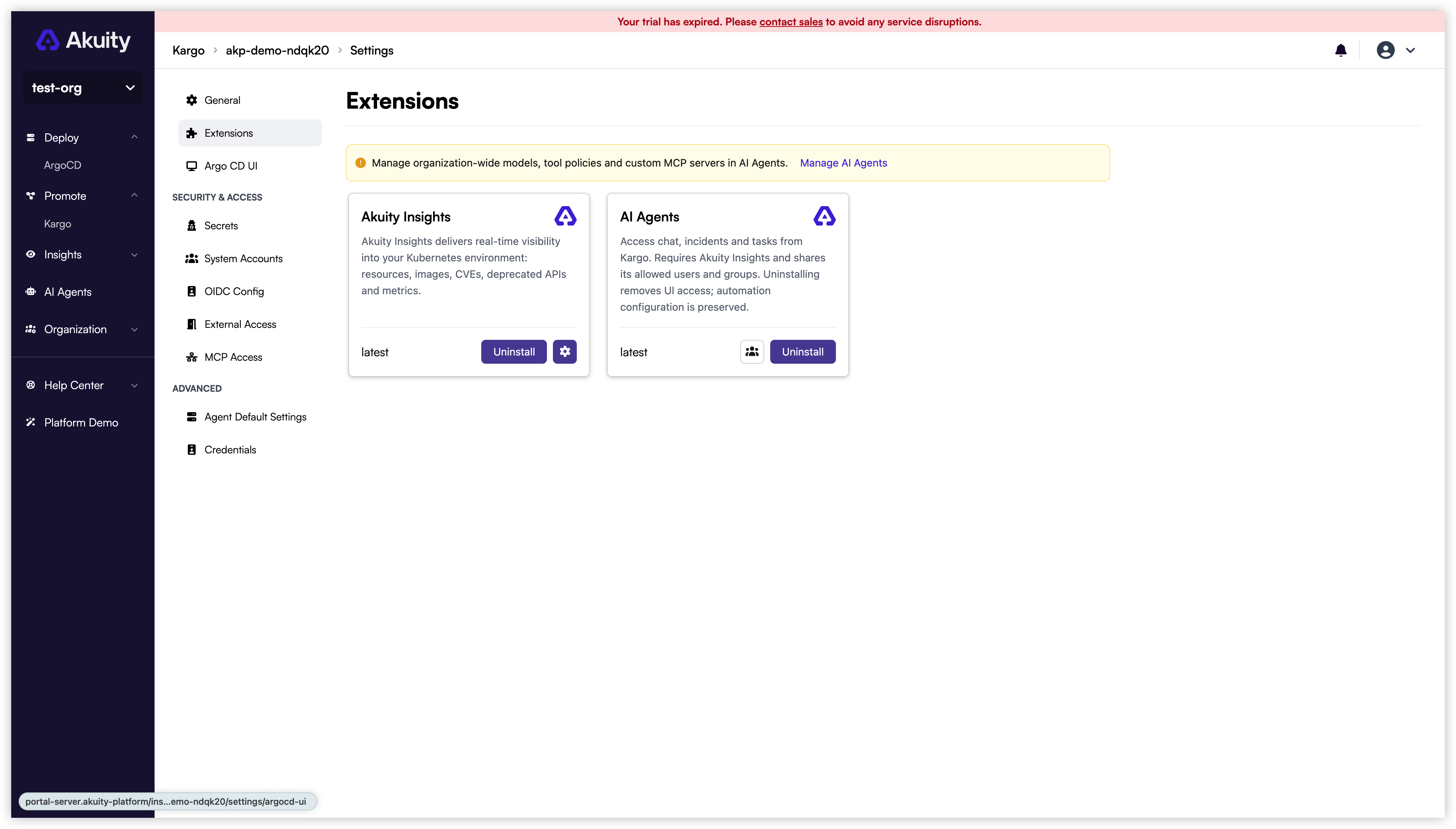
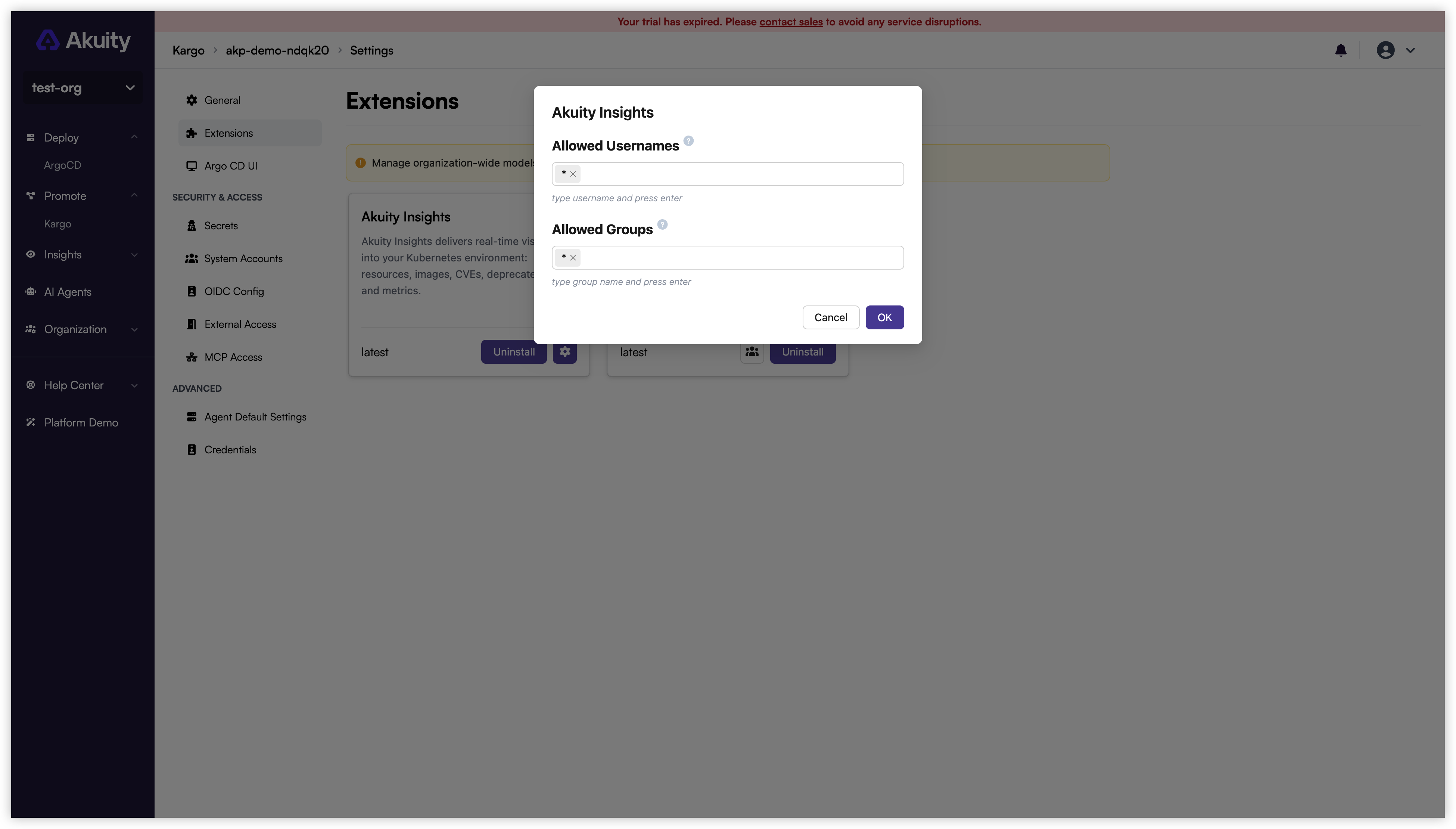
Click the gear button on the Insights card to configure the allowed Kargo users and OIDC groups. This allowlist also controls access to AI Agents. Use View shared access on the AI Agents card to inspect the shared permissions.
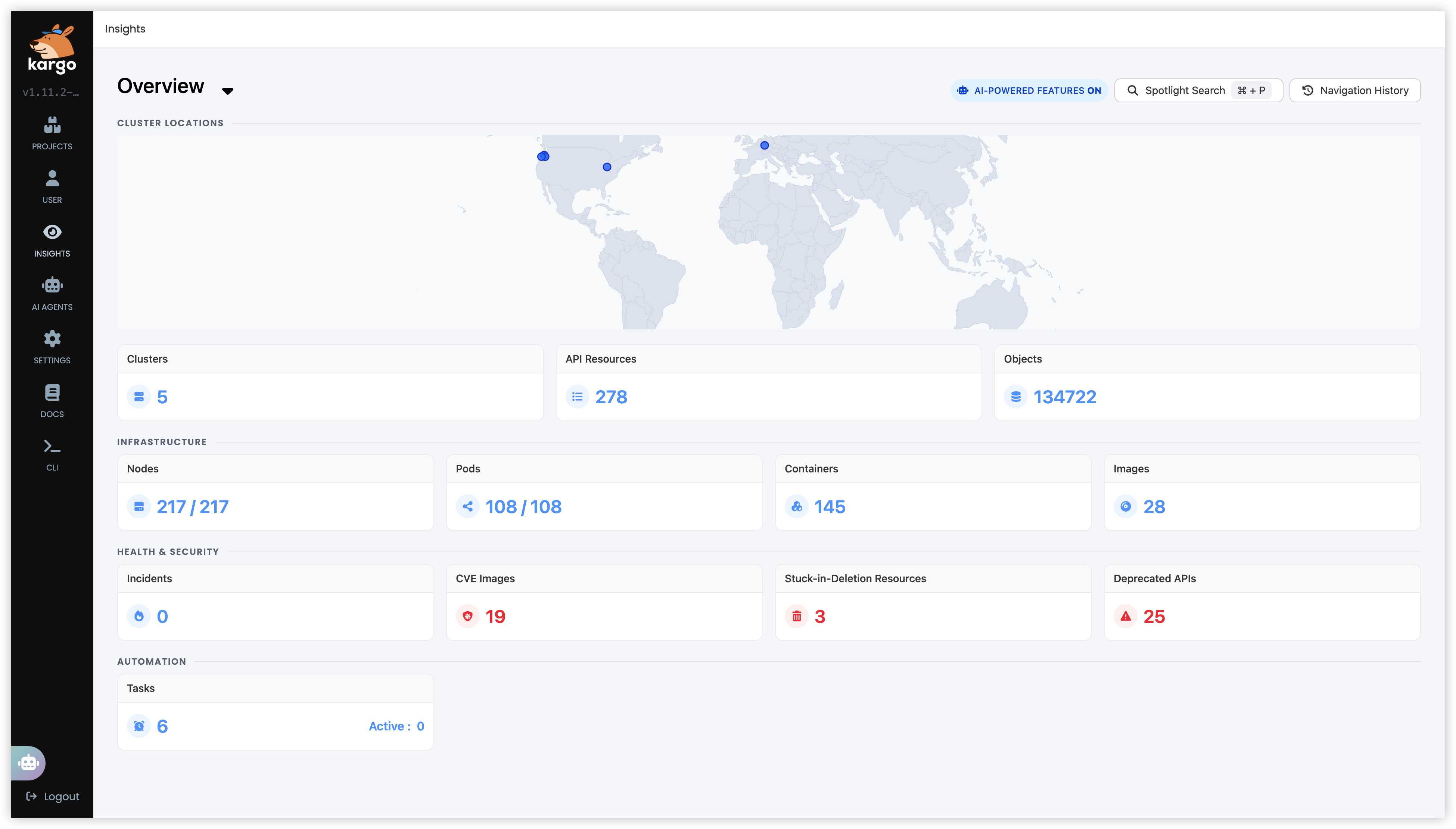
Authorized Kargo users can open Insights in the sidebar to view resource dashboards. To make incidents, runbooks, and tasks available, install the separate AI Agents extension after Insights.
In Kargo, dashboards such as Overview and Explorer use data collected through Argo CD instances. Installing the Kargo Insights extension does not enable collection. To populate these dashboards, enable Insights collection for the relevant Argo CD instances and clusters.
Uninstalling Insights also uninstalls AI Agents while preserving incident and integration configuration. Reinstalling Insights does not automatically reinstall AI Agents.
Insights usage
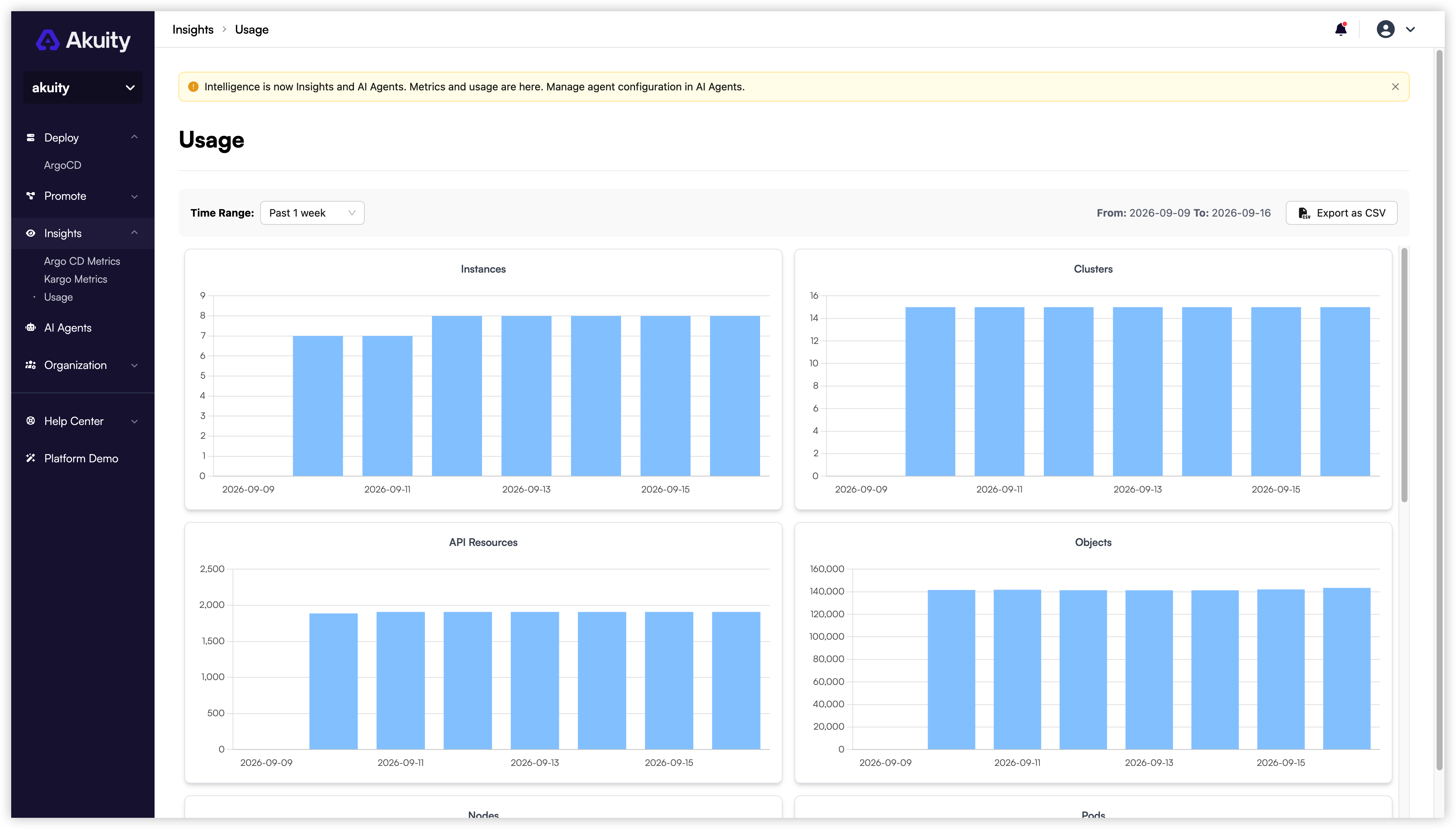
In the Akuity Portal, open Insights → Usage to view consumption grouped by instance.
The resource inventory metrics are Instance, Cluster, API Resource, Object, Node, Pod, and Container. The AI Token metric on the same page measures AI Agents usage.