Multi Factor Authentication
Multi Factor Authentication (MFA) is a security feature that requires users to provide more than one verification factor to access the Akuity Platform. This adds an extra layer of security to your account and helps protect your data.
Any user can enroll in MFA voluntarily from their own account, regardless of their organization's settings. Organizations can also require MFA for all members by setting an enforcement level.
For password guidance, see Account Security.
This feature is only available on SaaS and not available on Self-Hosted.
Enrolling in MFA for yourself
You can set up MFA for your own account at any time, whether or not any of your organizations require it.
-
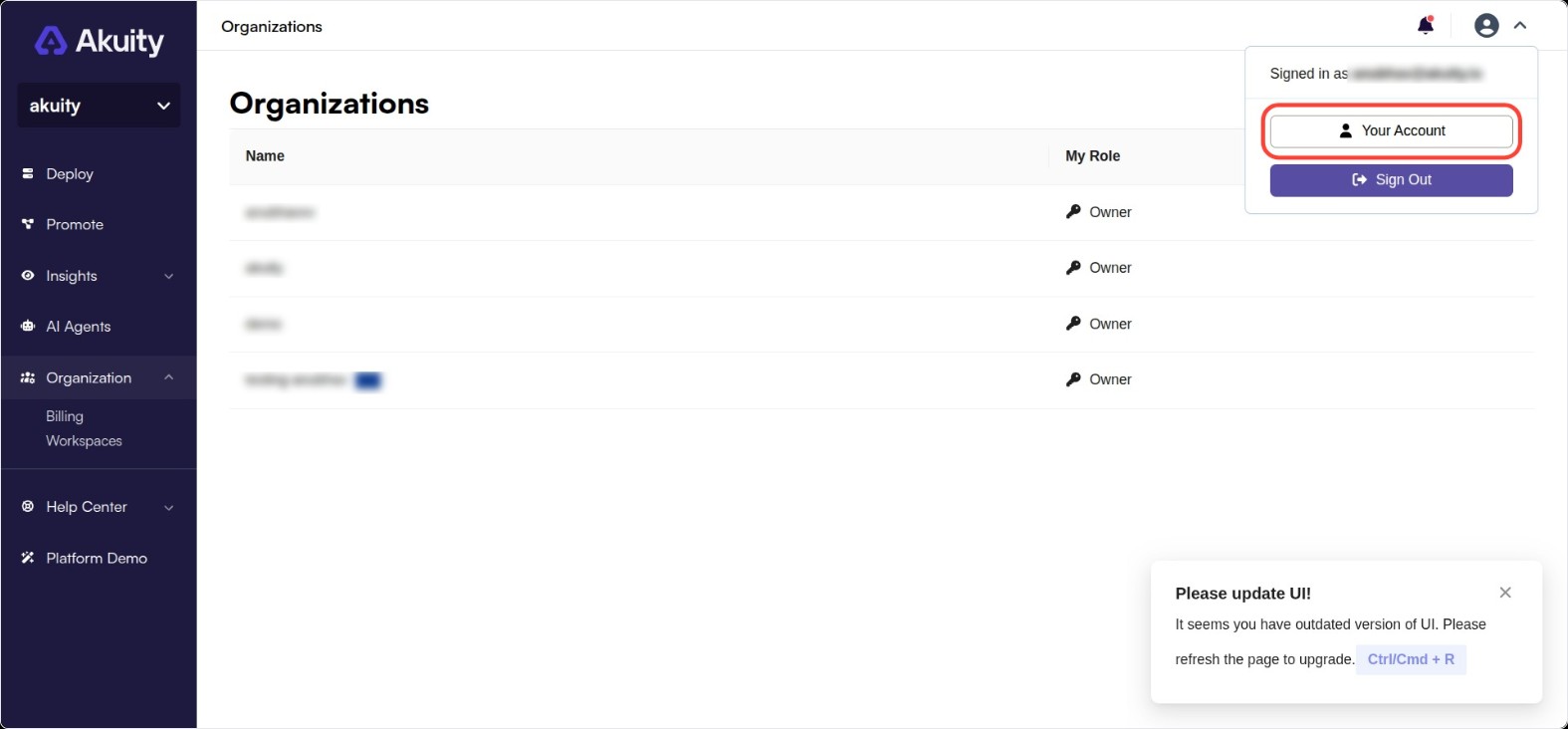
Click your avatar in the top-right corner and click Your Account.
-
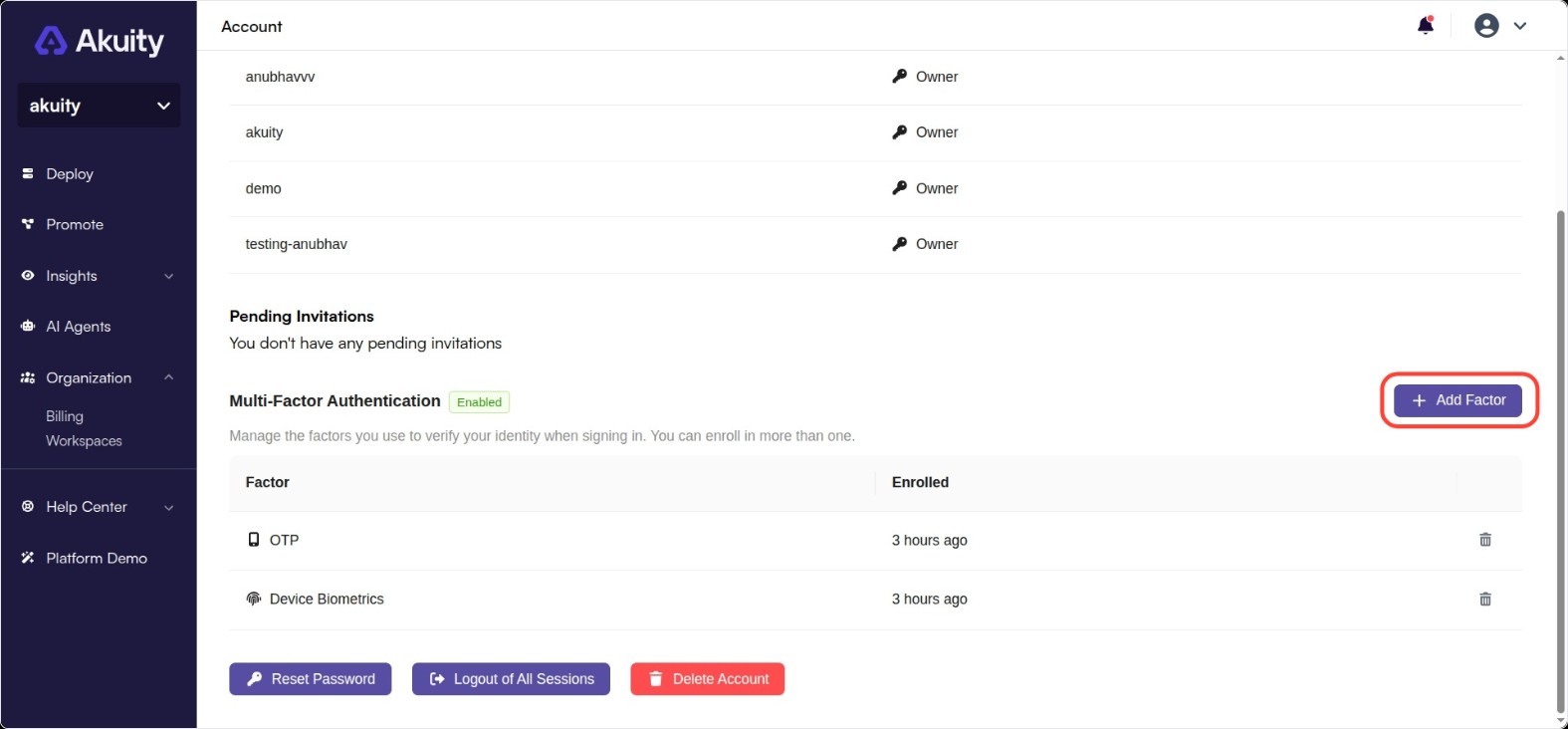
Under Multi-Factor Authentication, click Add Factor.
-
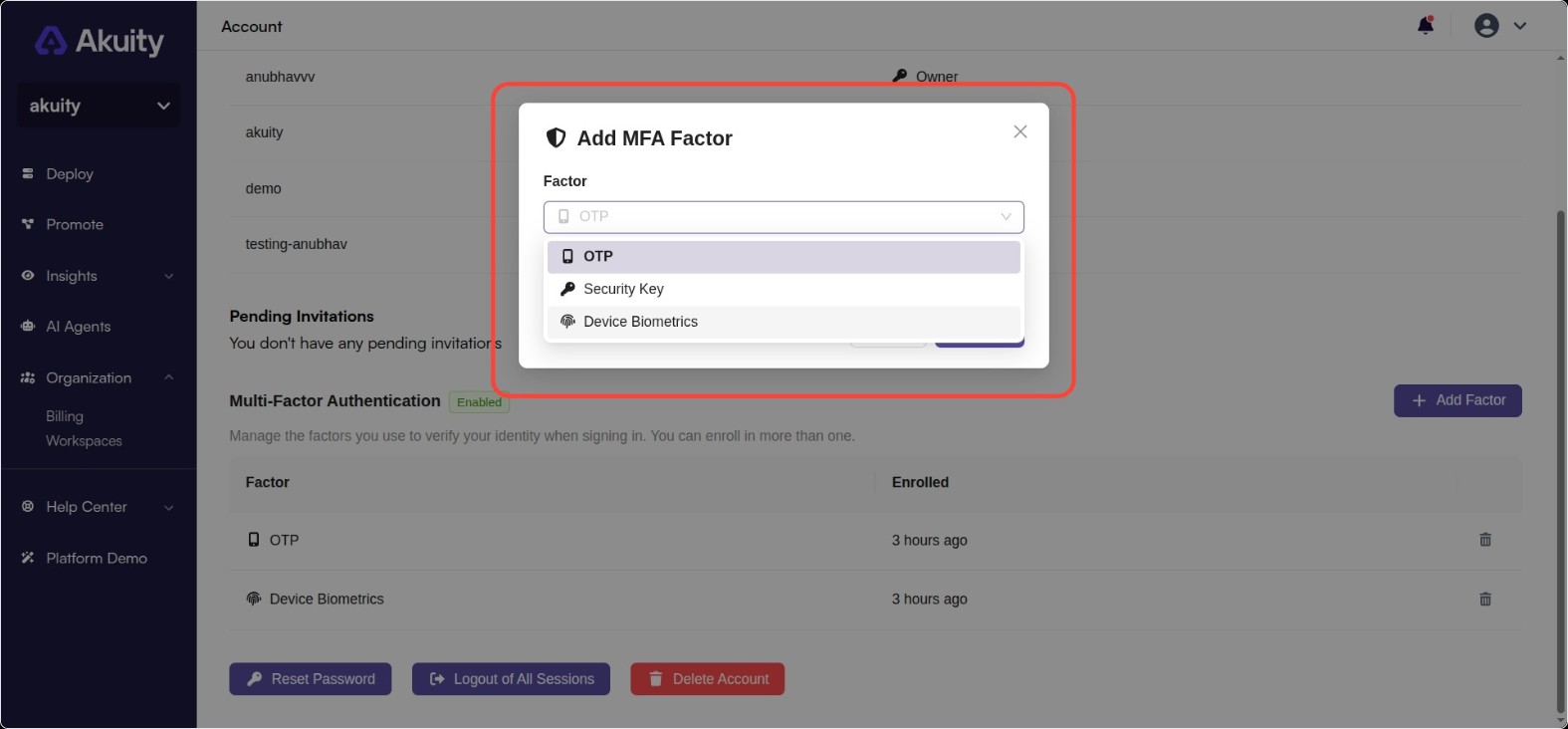
Choose a factor and click Continue. You can enroll in:
-
OTP: a time-based one-time code from an authenticator app.
-
Security Key: a physical security key, such as a YubiKey.
-
Device Biometrics: your device's built-in biometrics, such as a fingerprint or face scan.
-
-
Click Open enrollment to complete setup on our authentication provider's page, then return and click Done.
You can enroll in more than one factor for flexibility. To replace a factor, remove the existing one first.
If any of your organizations require MFA, you must keep at least one accepted factor enrolled. You cannot remove your last remaining factor if doing so would leave you unable to meet that requirement.
Requiring MFA for your organization
Organization owners can require members to set up MFA before they can access the Akuity Platform.
Requiring MFA at the organization level is available on Professional and Enterprise plans only. Please contact our Sales Team to access the feature.
The owner role on the organization is required to change this setting. Voluntary, individual enrollment above is available to everyone regardless of plan.
-
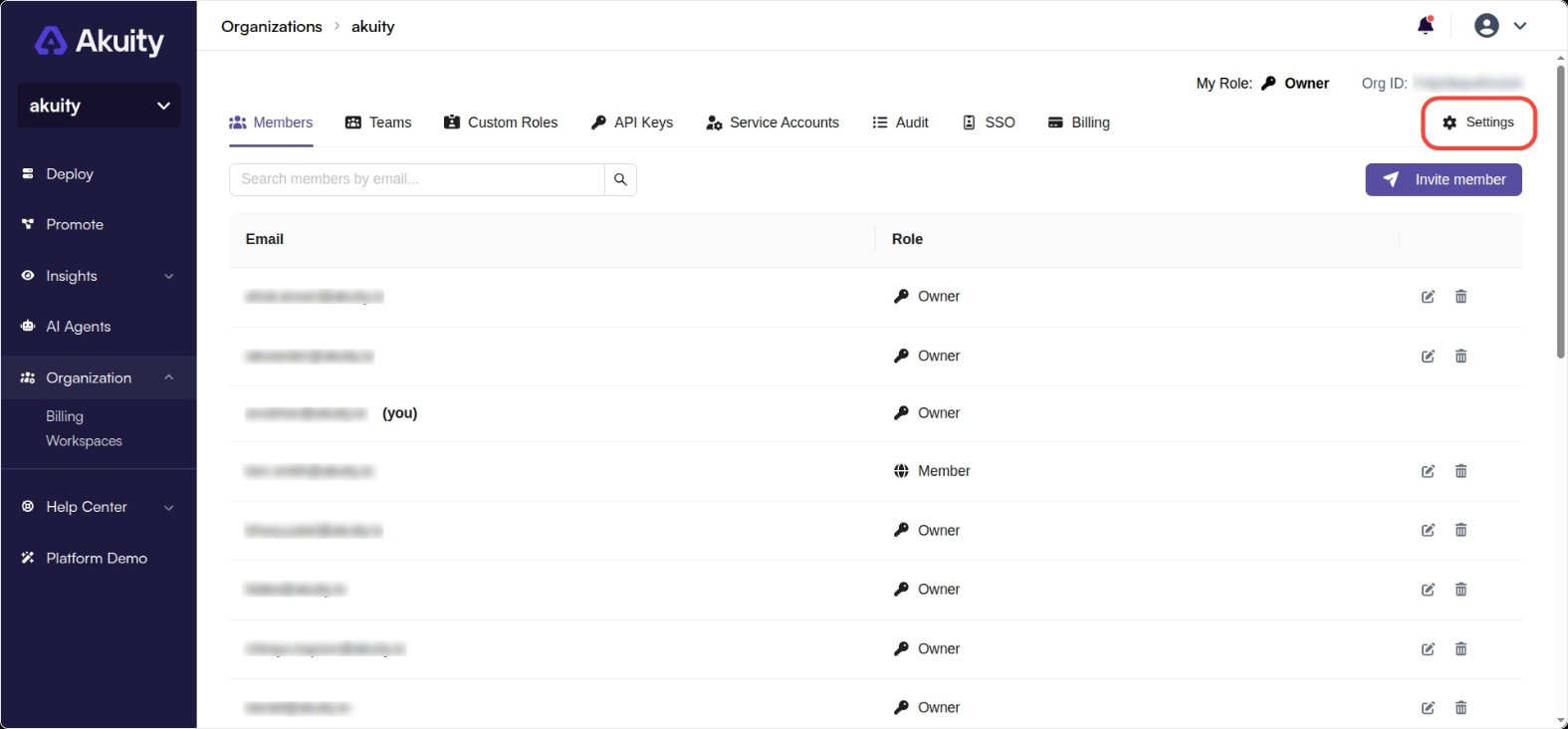
Click the Organization drop-down on the left navigation menu and click Settings.
-
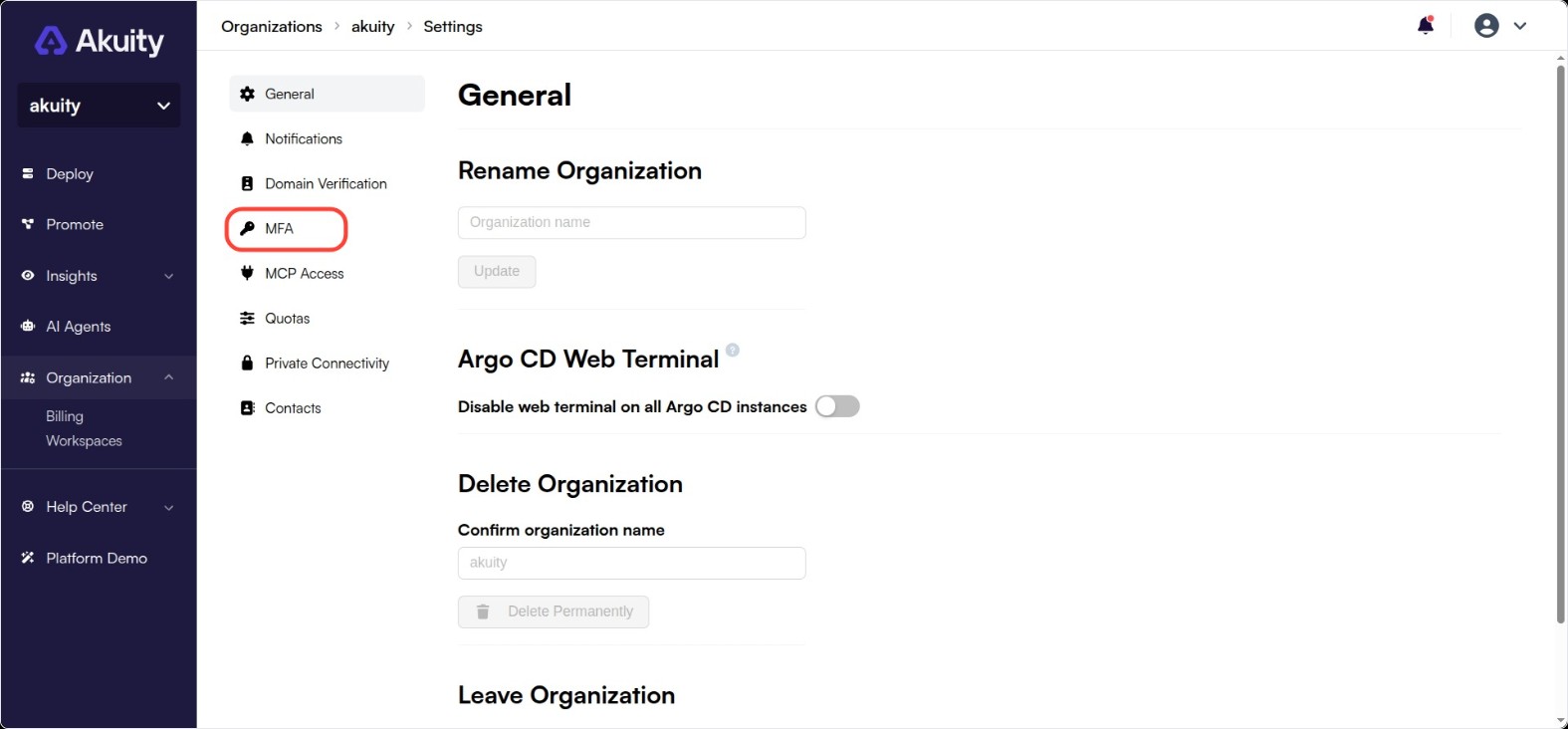
Click the MFA tab.
-
Select an MFA enforcement level and confirm the action.
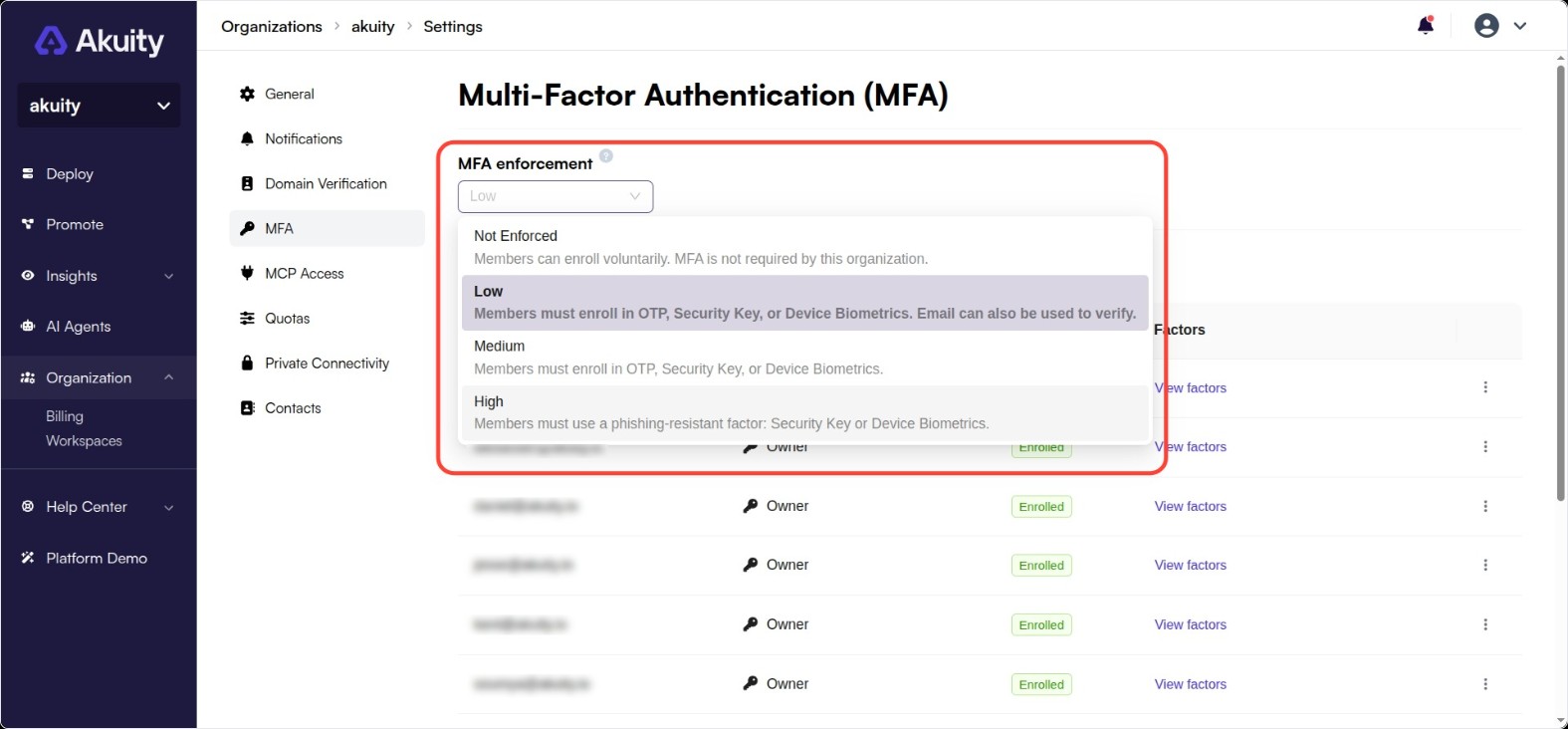
Choose from one of the following levels:
-
Not Enforced (default): members can still enroll voluntarily, but MFA is not required.
-
Low: members must enroll in OTP, Security Key, or Device Biometrics. A verified email can also be used as an additional way to verify.
-
Medium: members must enroll in OTP, Security Key, or Device Biometrics.
-
High: members must use a phishing-resistant factor: Security Key or Device Biometrics.
Once you raise the enforcement level above Not Enforced, any member without a factor that satisfies it must enroll the next time they sign in. Otherwise, they will not be able to access the Akuity Platform.
If a member belongs to more than one organization, they must satisfy the strictest level among all of them.
Managing member MFA
You can view which members have MFA enrolled, and which factors they've set up, from the MFA tab in Organization → Settings. Each member's status is one of the following:
-
Enrolled: the member has set up at least one MFA factor.
-
Not Enrolled: the member has not set up MFA.
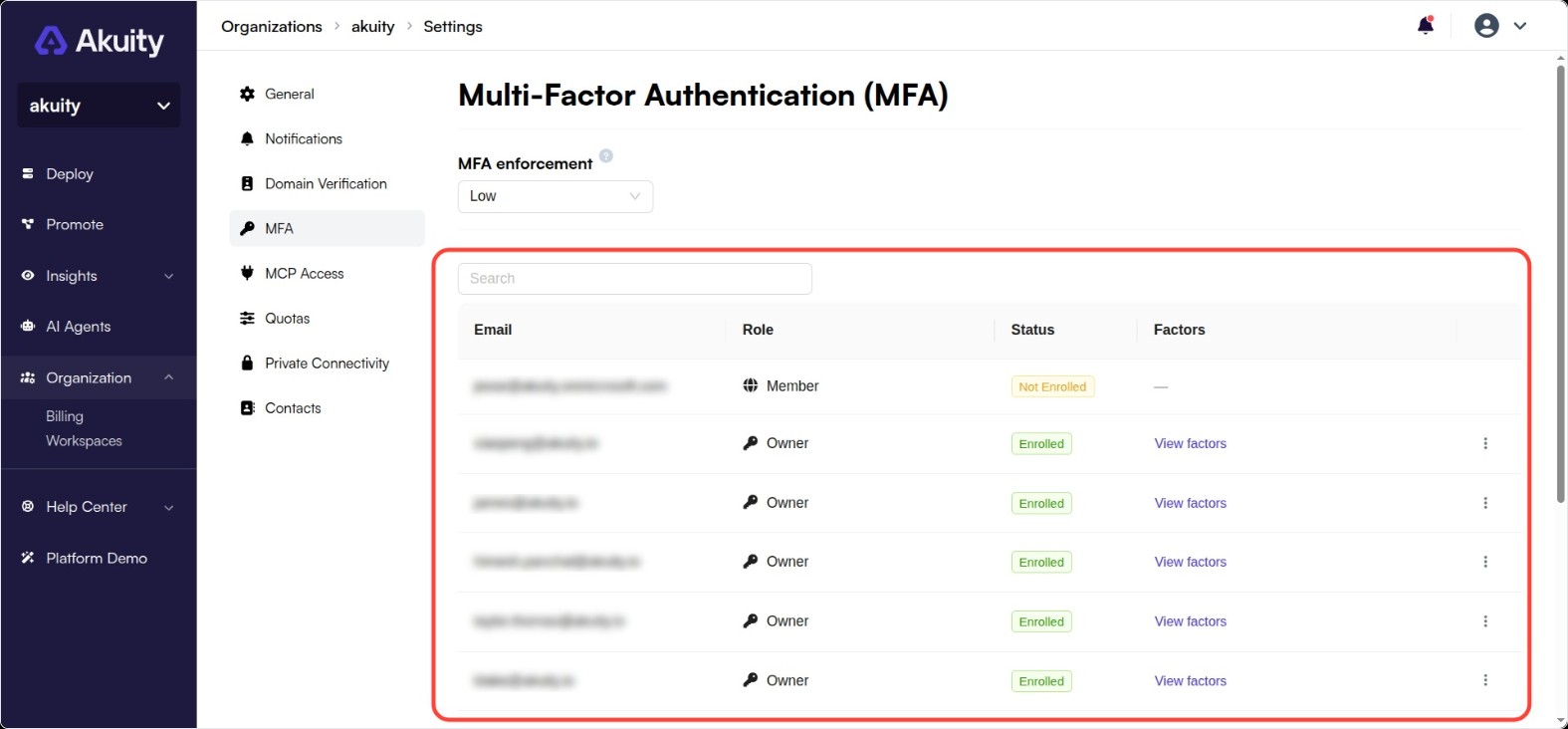
Click View factors next to an enrolled member to load the specific factors they've set up.
In case a member is locked out of their account and can no longer access their MFA factor, an organization owner can request that their MFA be reset:
-
Click the three-dot menu (⋮) next to the member and click Request MFA Reset.
-
Confirm the request. Our support team will review and approve it.
Once MFA is reset for a member, they will be prompted to set up MFA again the next time they log in, if your organization's enforcement level still requires it.