Google Workspace
Configure Google Workspace as the Single Sign-On provider for your organization on the Akuity Platform.
Configuring Google Workspace SSO
Akuity Platform SSO is available on Enterprise plans only. Please contact our Sales Team to access the feature.
The owner role on the Organization is required to configure SSO.
-
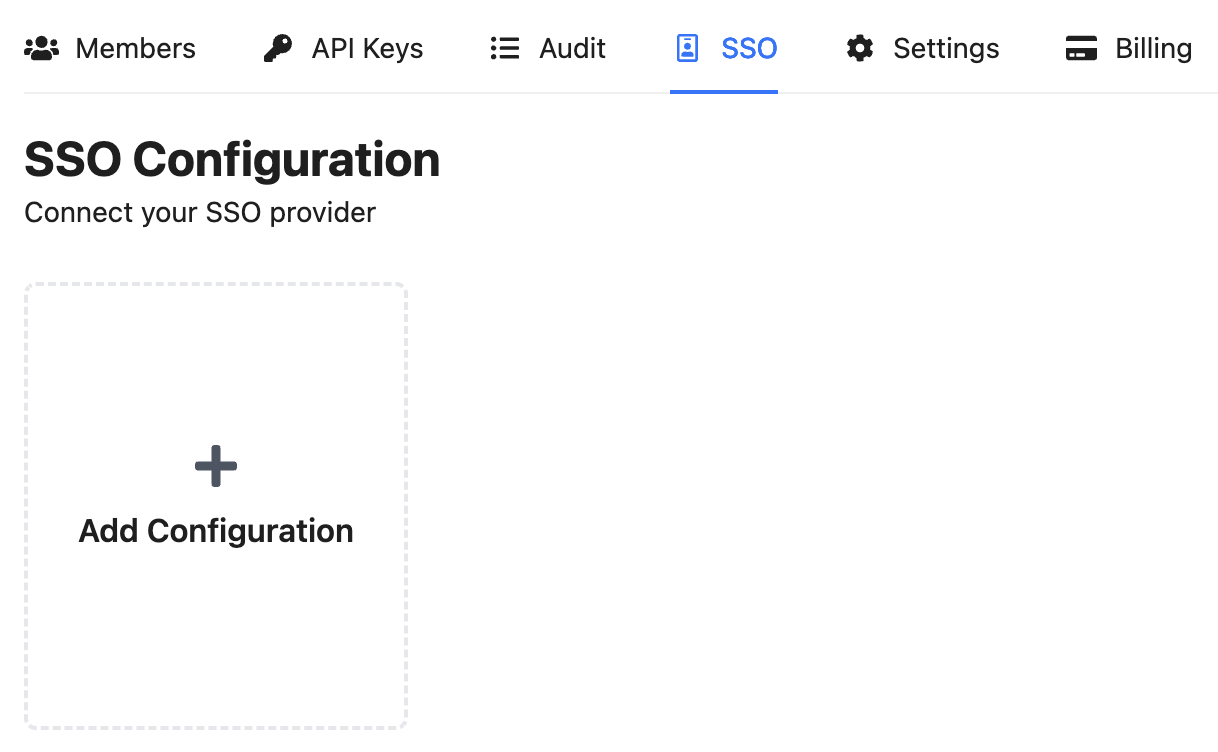
Go to Organization > SSO.
-
Click Add Configuration.
-
Register an application to the Google Workspace with the following settings:
- Authorized JavaScript origins to
https://auth.akuity.io - Set Redirect URI to
https://auth.akuity.io/login/callback
- Authorized JavaScript origins to
-
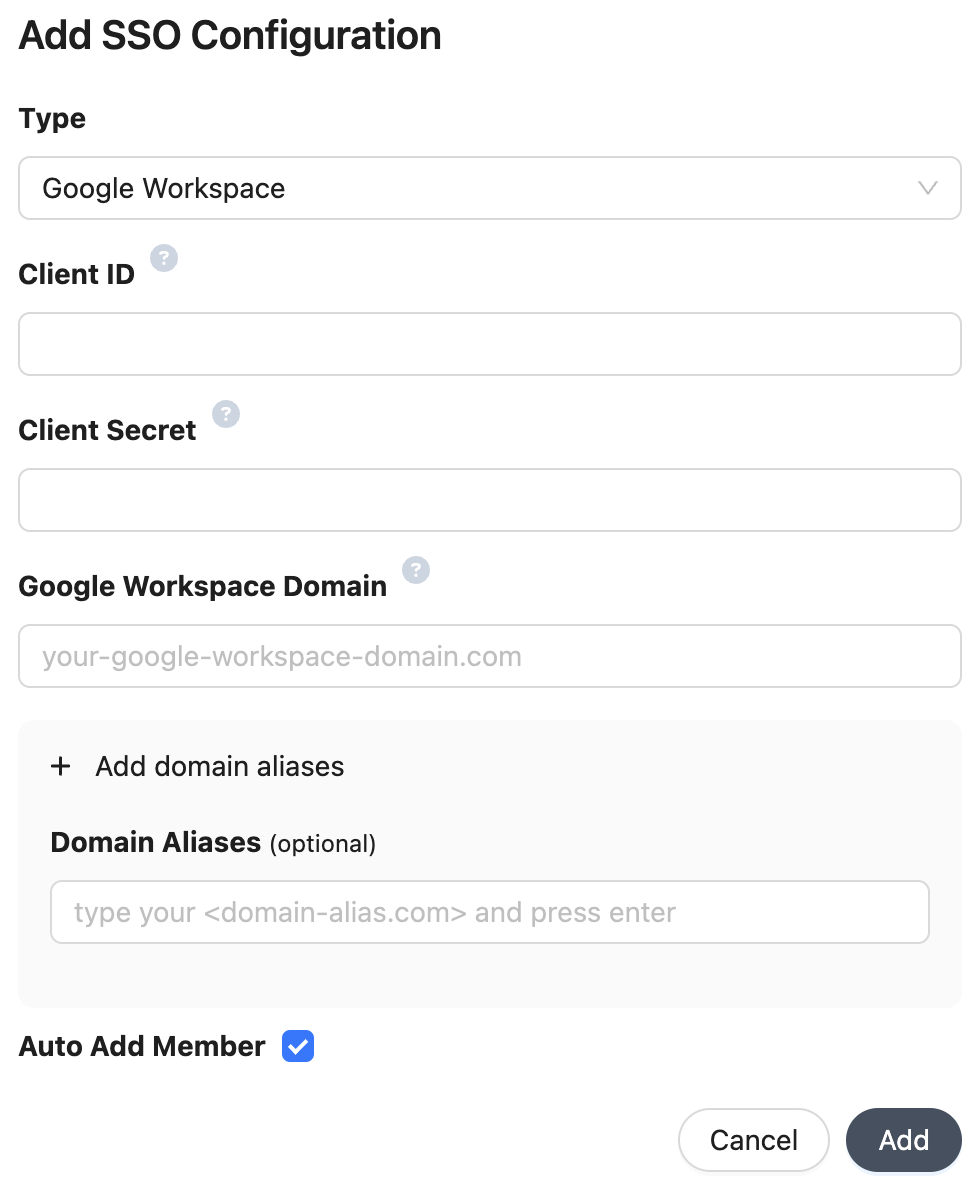
Populate the configuration details inside the form:
- Client ID: Application (client) ID
- Client Secret: Client Secret
- Google Workspace Domain: Google Workspace domain name for your organization.
- Domain Aliases: Additional domains to match organization members (e.g.
some-org.com). - Auto Add Member: Allow your organization members to join your organization with the
memberrole automatically.
For security purposes, your domain and domain aliases will be submitted to Akuity for manual review and approval.
- Test the connection.
IDP Groups Mapping
IDP Groups does not work for Okta native integration as Okta does not support groups claim. Please use generic SAML/OIDC option instead to connect with Okta if you want to use this feature.
To configure IDP Groups for an Organization in the Akuity Platform:
-
Go to Organization > SSO.
-
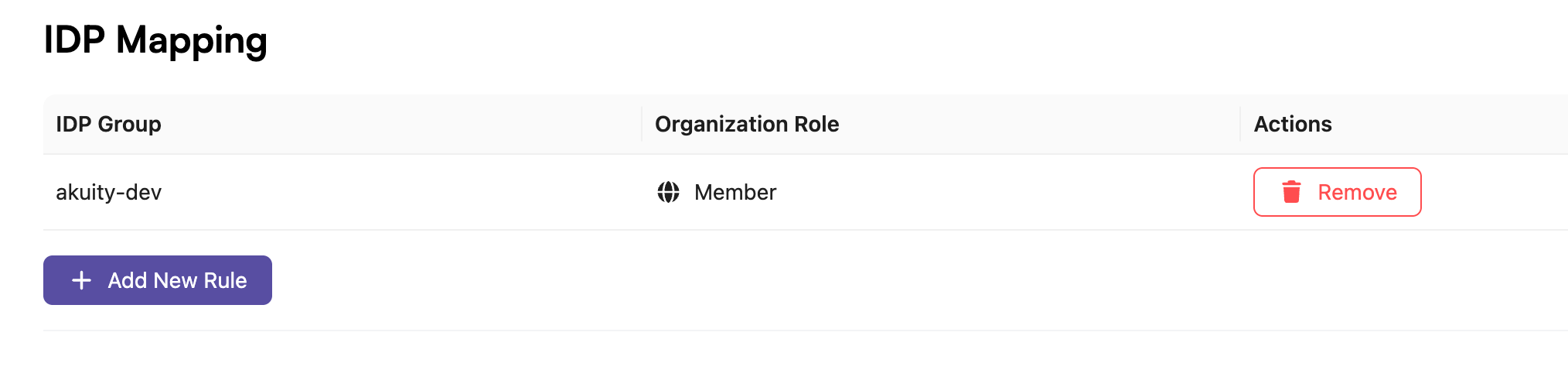
Click Add New Rule in the IDP Mapping.
-
In the Add IDP Group Mapping select the role and specify the corresponding IDP Group for your provider.
-
Click the Add button.
In the SSO settings, if the Auto Add Member is checked the new user will join your organization with the member role automatically.
IDP Team Mapping
IDP Team Mapping does not work for Okta native integration as Okta does not support groups claim. Please use generic SAML/OIDC option instead to connect with Okta if you want to use this feature.
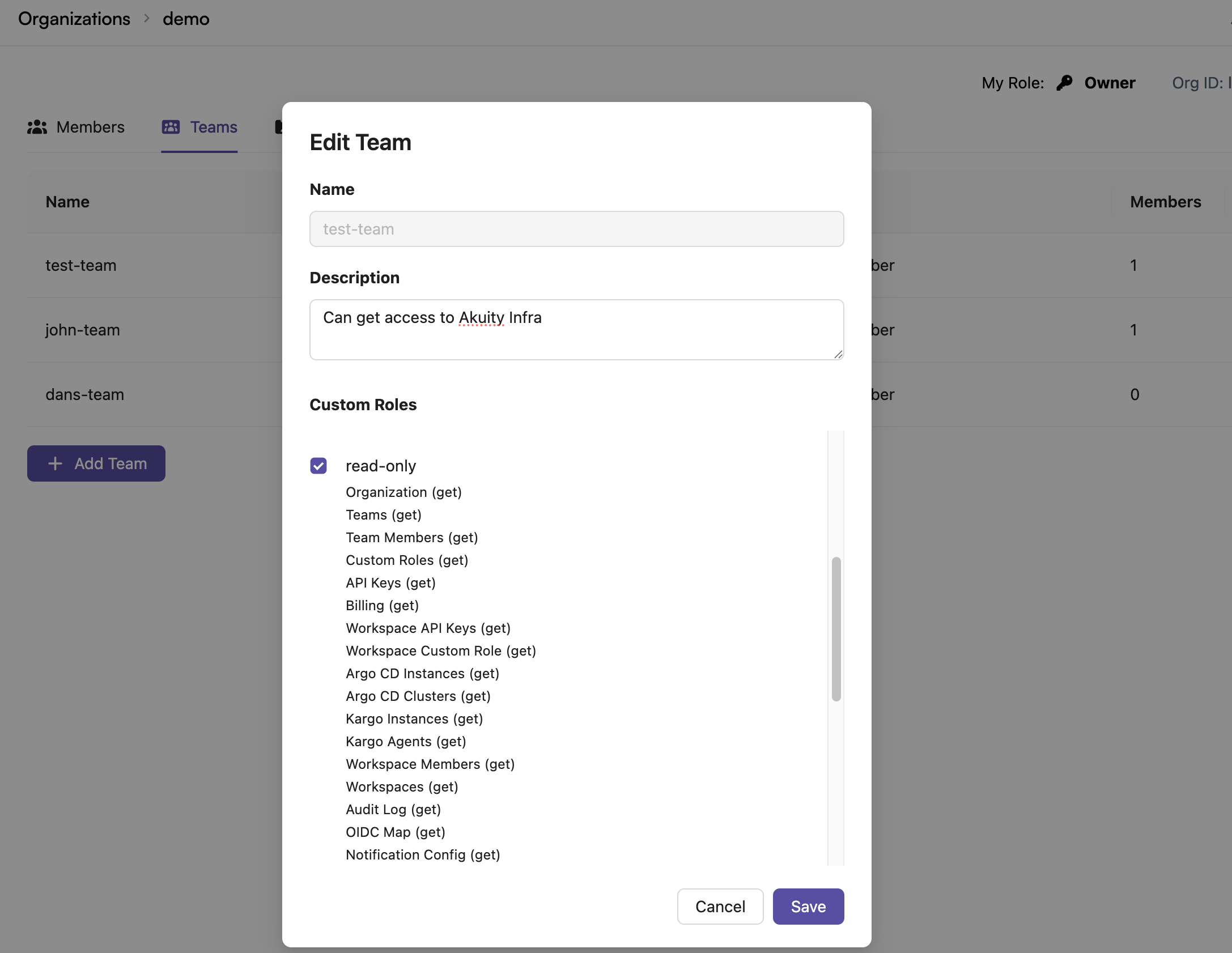
This feature allows you to map users with a specific OIDC group to a team in your organization.
Your organization must have at least one Team.
To configure this feature for an Organization in the Akuity Platform:
-
Go to Organization > SSO.
-
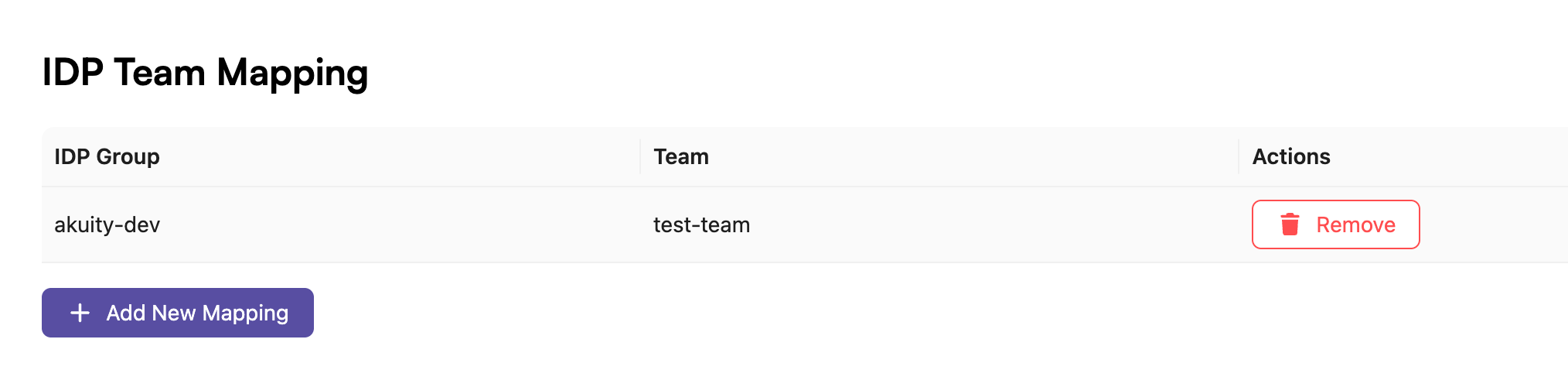
Scroll down to the "IDP Team Mapping" section and click Add New Mapping.
-
In the modal that appears, specify an IDP group and select an existing team from the dropdown.
-
Click the Add button.
Now, when a user logs in with the specified IDP group, they will be added to the selected team in your organization.