External Access
All external access settings can be located by navigating to Kargo → your instance → Settings → External Access.
Custom Domain
Akuity Subdomain
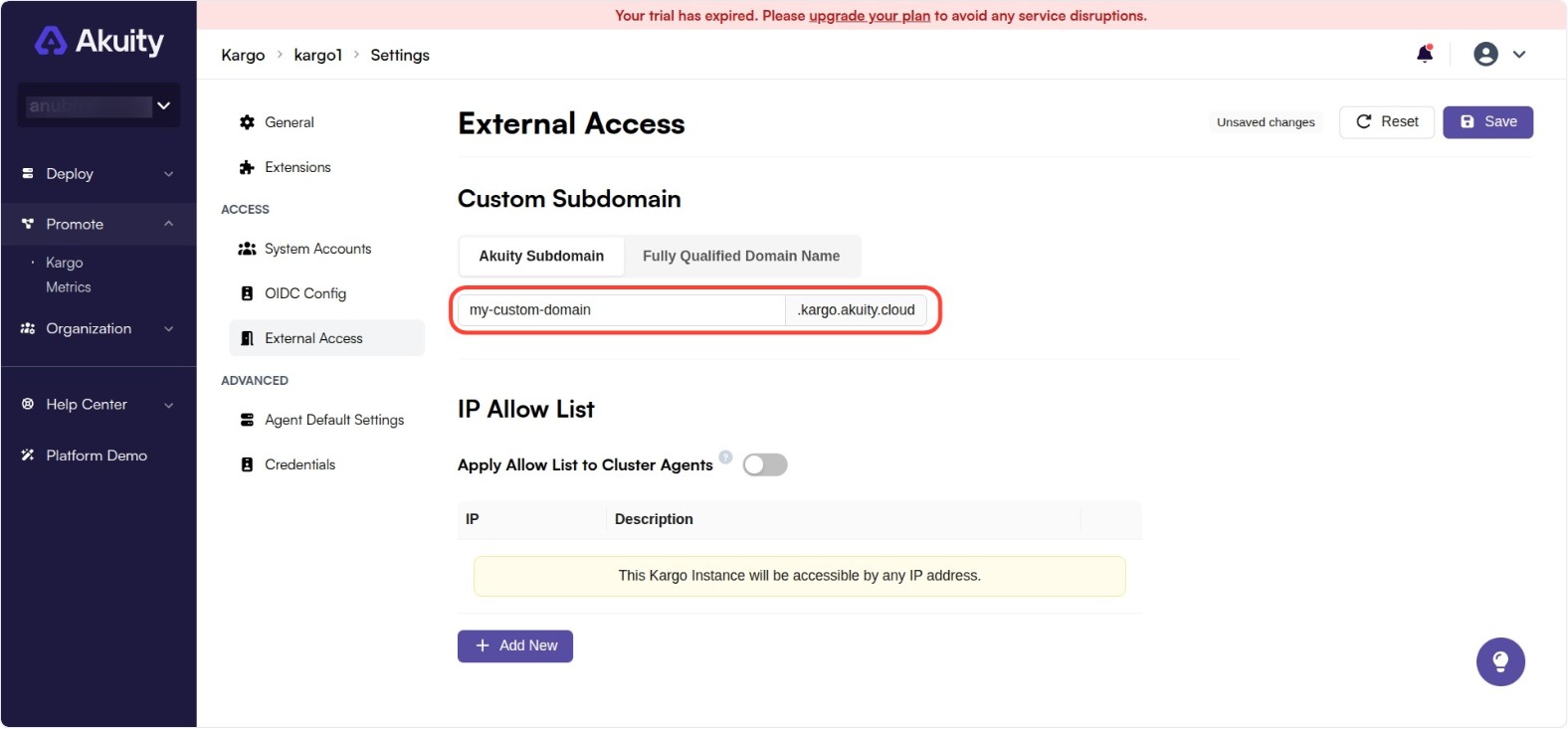
By default, each Kargo instance's UI will be accessible at <instance id>.kargo.akuity.cloud, however, the Akuity Platform does permit you to set a custom domain prefix for each Kargo Instance.
To customize this:
-
Change the value of the Akuity Subdomain field.
-
Click Save.
Fully Qualified Domain Name
If you have a custom domain that you would like to use, you can set up a CNAME record to point to the Akuity Platform's domain.
To do this:
-
Create a CNAME record in your DNS provider that points to
<instance id>.kargo.akuity.cloud. -
Change the value of the Fully Qualified Domain Name field to your custom domain.
-
Click Save.
TLS certificate is not needed to provide for the custom domain. Once the CNAME record resolves, the Akuity Platform automatically issues a certificate for the domain from a publicly trusted certificate authority and renews it before it expires.
IP Allow List
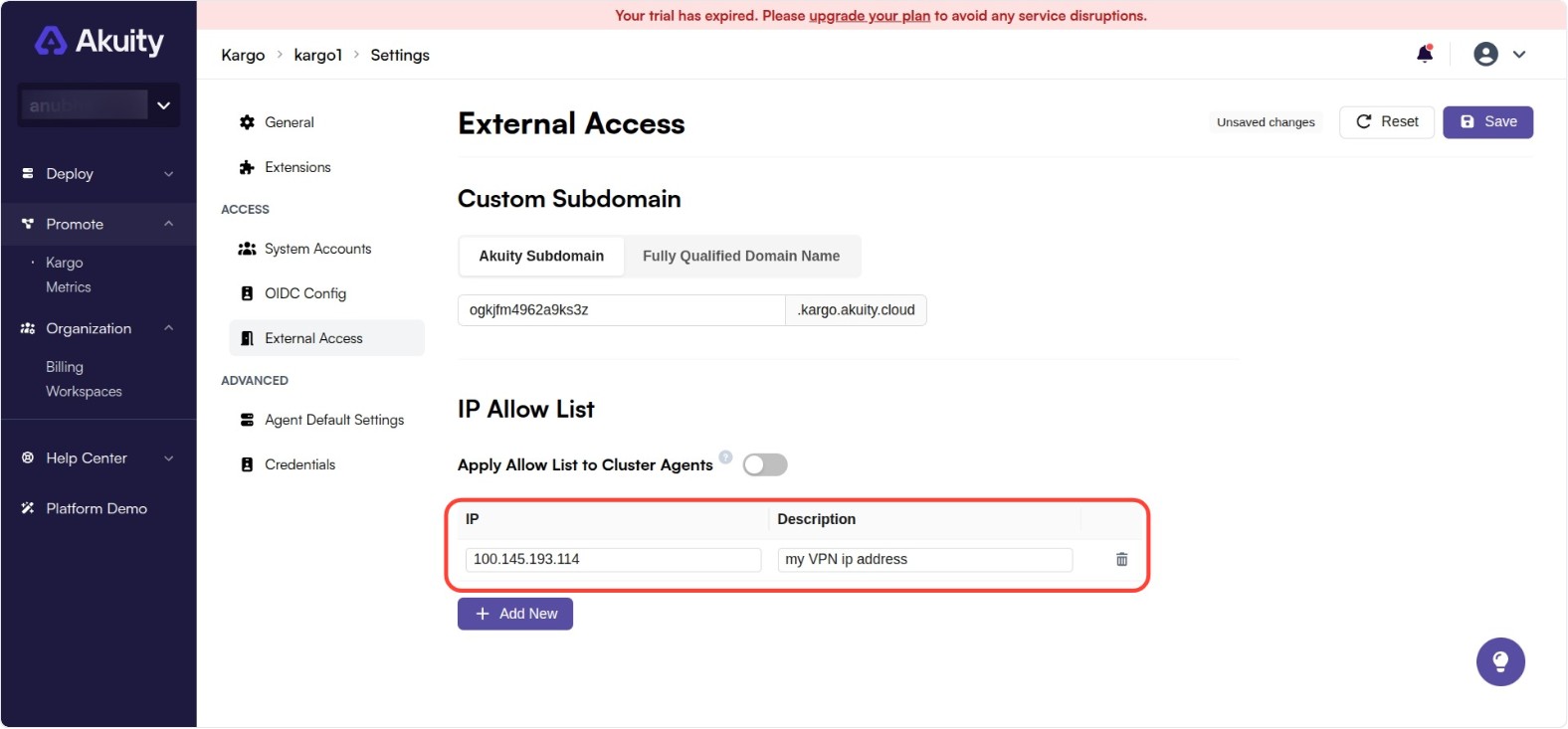
By default, each Kargo instance is accessible by clients with any IP address, however, this can be narrowed to a specific list of IP addresses or CIDR ranges.
To customize this:
-
Under IP Allow List, click + Add New and complete the IP Address and Description (optional) fields.
- Repeat this step as necessary.
-
Click Save.
To restore access from any IP address, simply remove all entries from the list.
Private Connectivity
Organizations with AWS PrivateLink enabled can take the Kargo instance off the public internet entirely by switching Private Connectivity to Private. This requires a connected AWS account and is mutually exclusive with the Fully Qualified Domain Name setting.
See Private Connectivity (AWS PrivateLink) for the full setup guide.