MCP Access
The Akuity MCP Server lets MCP-compatible AI agents inspect and operate your Kargo instance through authenticated tools. This page covers the instance's direct endpoint, https://<KARGO_HOSTNAME>/mcp, which uses the instance's own authentication and RBAC.
If you sign in to the Akuity Platform, connect once to the platform endpoint instead. It reaches every MCP-enabled instance you have permission to access. The direct endpoint is for users who authenticate directly with this Kargo instance and have no Akuity Platform organization access.
The Akuity MCP Server is available for selected organizations. Ask your Akuity representative to enable it for your organization.
The settings can be located by navigating to Kargo → your instance → Settings → MCP Access.
Enable the direct endpoint
Enabling MCP access requires update permission on the instance. Organization Owner access is not required. The organization's guardrail level also applies to the direct endpoint.
- Go to Settings → MCP Access. You can also toggle access from Organization Settings → MCP Access → Instance access; its View instructions link opens this page in a new tab.
- Turn on Allow access to this instance, then click Save. Changes on this page are staged until you save.
- If the page shows an Identity provider callback, register it with your identity provider as described below before agents sign in.
- Wait for the instance to finish reconciling. The
/mcproute returns404until the new configuration is published. - Copy the endpoint
https://<KARGO_HOSTNAME>/mcpor one of the connection snippets shown on the page.
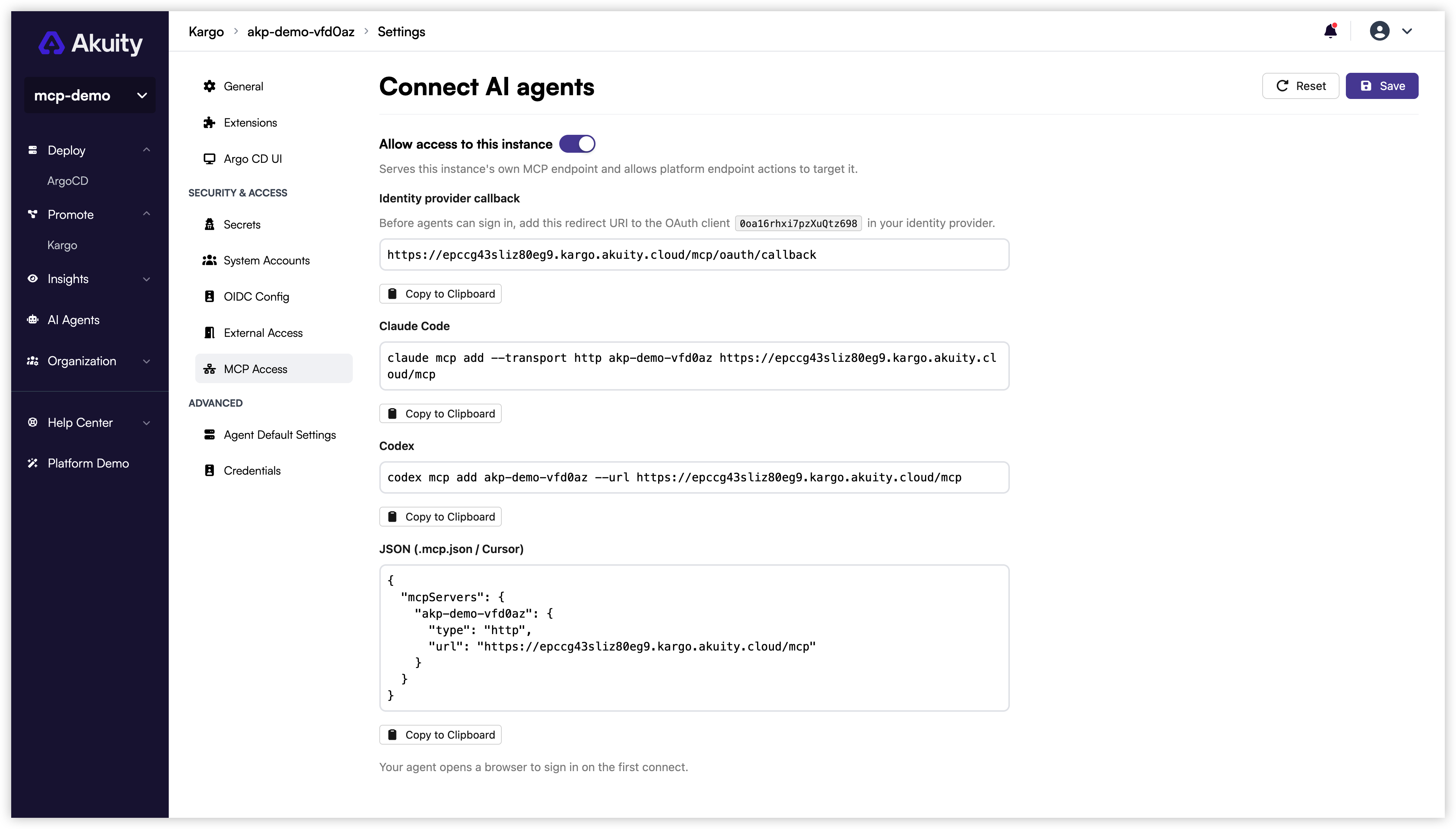
If this instance signs users in through direct OIDC, register https://<KARGO_HOSTNAME>/mcp/oauth/callback as an allowed redirect URI on the Kargo public OAuth client (cliClientId or clientId) before agents sign in. The MCP Access page shows the exact URI and client ID under Identity provider callback. Without it, the identity provider returns a redirect-mismatch error. Individual MCP client callbacks do not need to be registered.
Turning on access here serves this instance's own MCP endpoint and also allows platform endpoint actions to target the instance. It is the same toggle as MCP access in the organization's Instance access table.
Authentication
The direct endpoint uses the instance's existing authentication model. See Kargo SSO for how SSO is configured on the instance.
| Instance configuration | Expected experience |
|---|---|
| Dex-backed SSO | The client opens the instance sign-in flow. Only loopback callbacks on the localhost hostname are accepted; 127.0.0.1, ::1, custom schemes, and hosted clients are not accepted by the embedded Dex configuration. |
| Direct OIDC | The client is sent to your identity provider through Akuity's callback on the instance host. Requires the extra redirect URI described above. |
| Admin account (no SSO) | If the Kargo built-in admin account is enabled, Akuity presents an instance sign-in form. The password is checked by the instance itself and the session lasts as long as the instance's native token (24 hours by default); the client signs in again when it expires. Loopback clients only. |
If browser sign-in is unavailable, the client can send a native Kargo token as a bearer token instead.
Connect an MCP client
The portal shows the same snippets with the instance name as the server name. The client opens a browser to sign in with the instance's own authentication on the first connect.
- Claude Code
- Codex
- Cursor and JSON clients
claude mcp add --transport http kargo https://<KARGO_HOSTNAME>/mcp
codex mcp add kargo --url https://<KARGO_HOSTNAME>/mcp
{
  "mcpServers": {
    "kargo": {
      "type": "http",
      "url": "https://<KARGO_HOSTNAME>/mcp"
    }
  }
}
Verify the connection
Confirm that the client reports the server as connected, then use a prompt like the following:
List the Kargo projects in this instance. For each project, summarize its Warehouses and Stages, and report any failed Promotions.

For sign-in problems, missing tools, and guardrail errors, see Troubleshooting. For the tools available on this endpoint, see the tool reference.